
This guide will show you how to use the voice typing feature with a free API provider in the desktop app. Let's look at the steps:
Step 1: Open the Desktop App
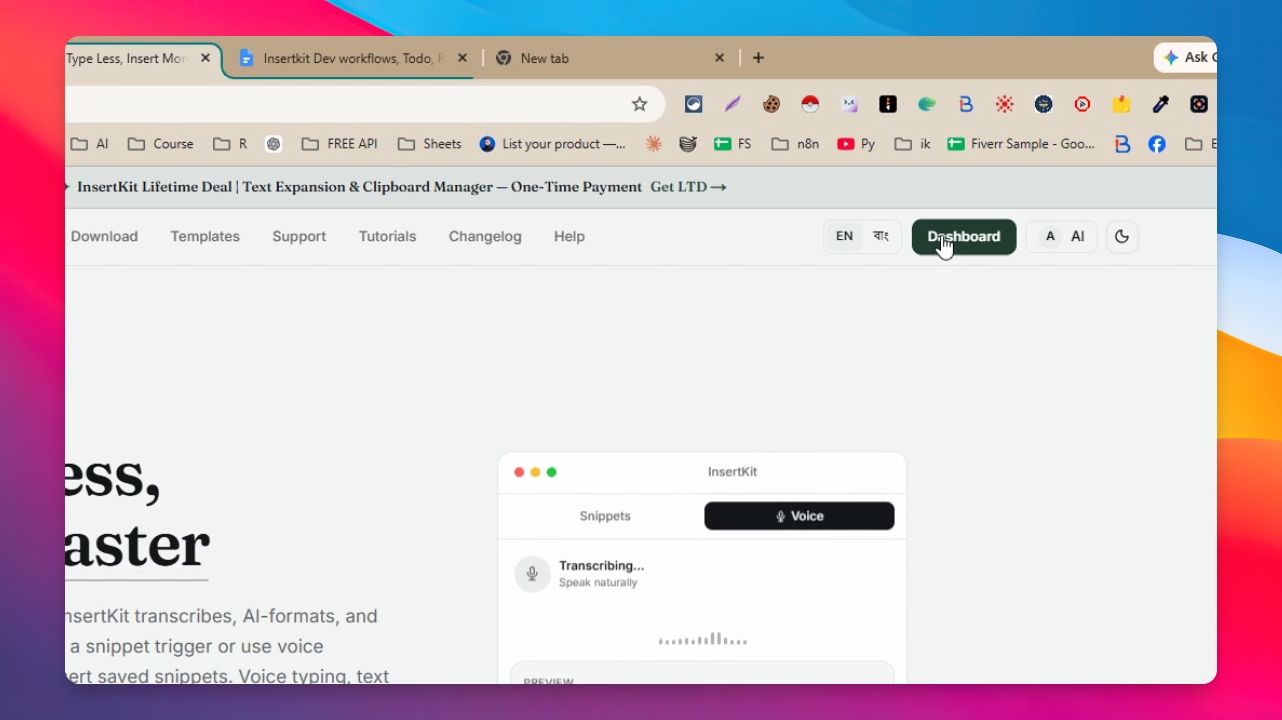
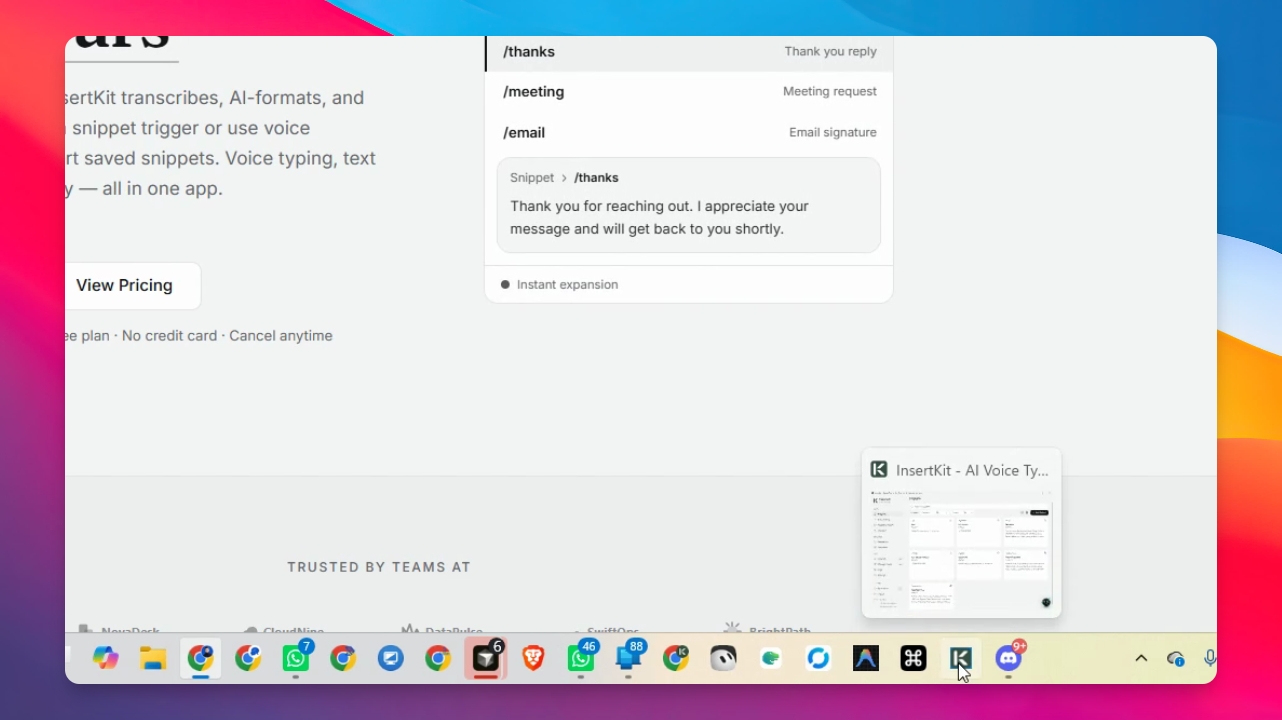
Launch the desktop app to begin the setup process.
Step 2: Access Voice Typing Settings
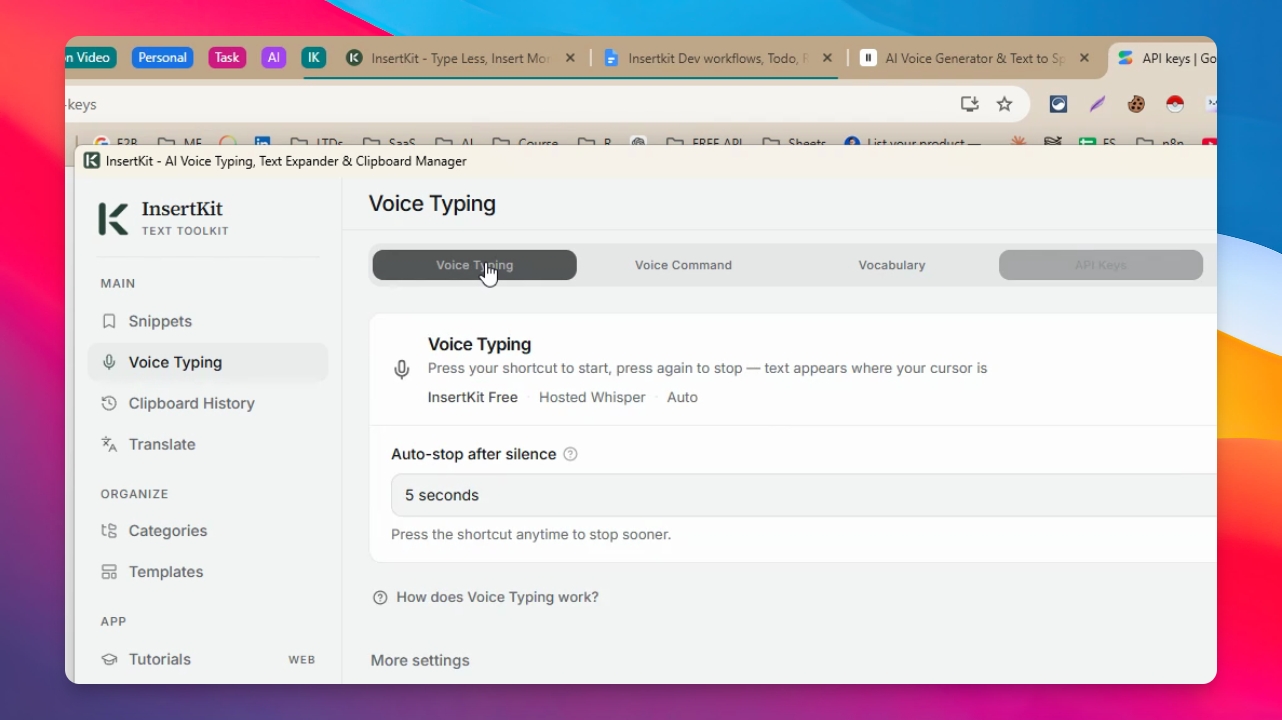
Click on Voice typing in the app. If prompted, allow microphone access to enable voice input.
Step 3: Review Transcription Provider
Check the current transcription provider. The default is a free provider, but it may have limitations. To improve speed and performance, you can add your own API key.
Step 4: Set Up API Keys
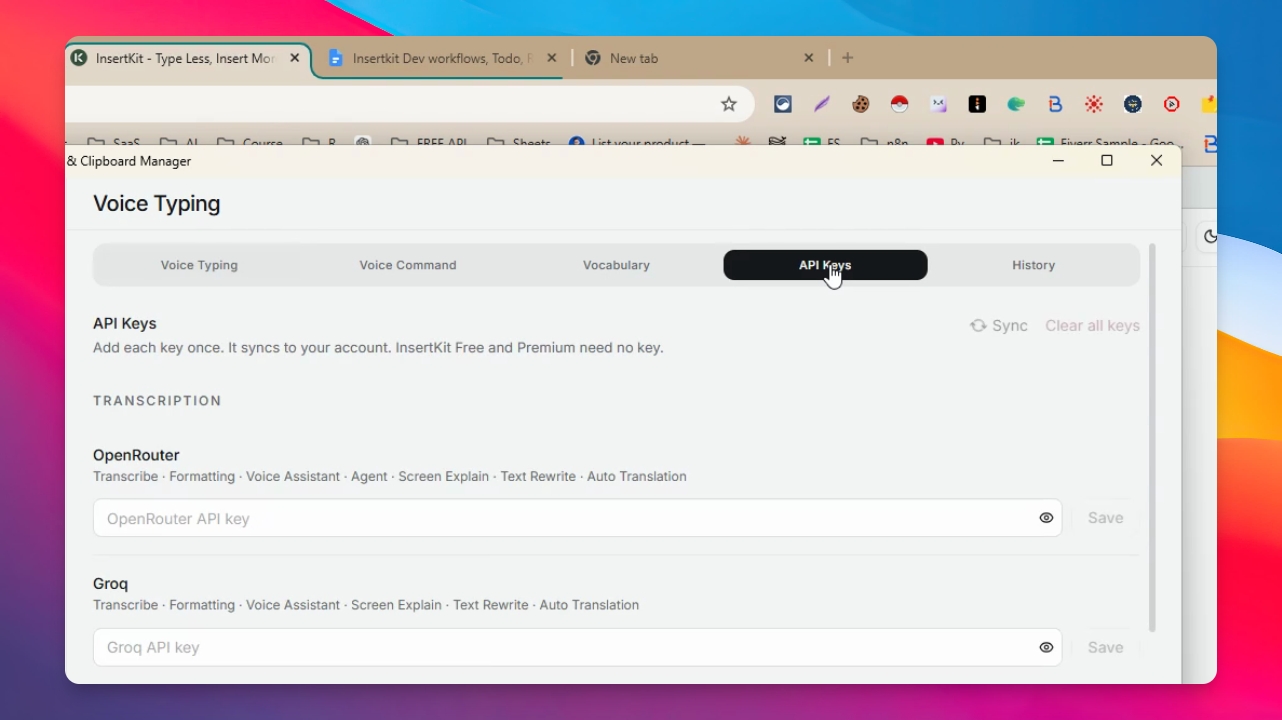
Go to the API key section in the app to set up API keys for different providers.
Step 5: Add 11labs API Key
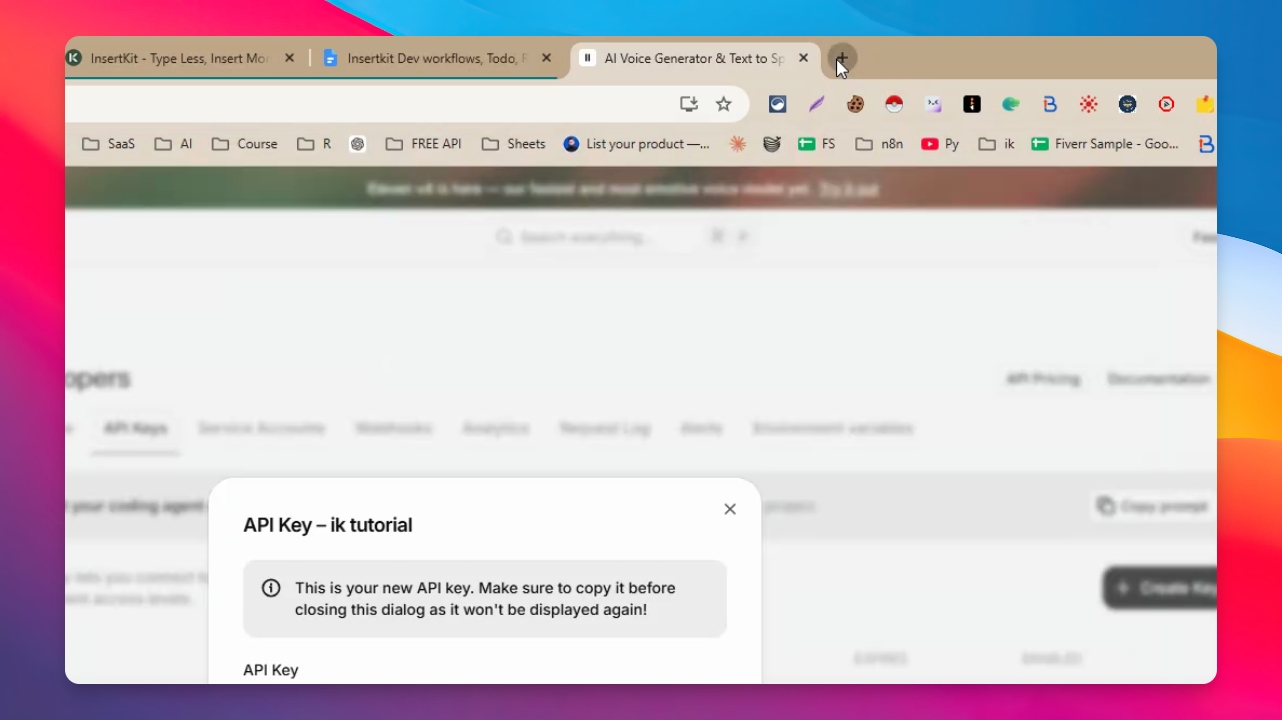
Visit 11labs.com and log in to your account. After signing up or logging in, go to the developers section, then click API key. Click Create key, name your key, and ensure speech to text access is enabled. Click Create key again, then copy the key to your clipboard.
Return to the desktop app, paste the key in the appropriate field, and click Save.
Step 6: Add Google Gemini API Key
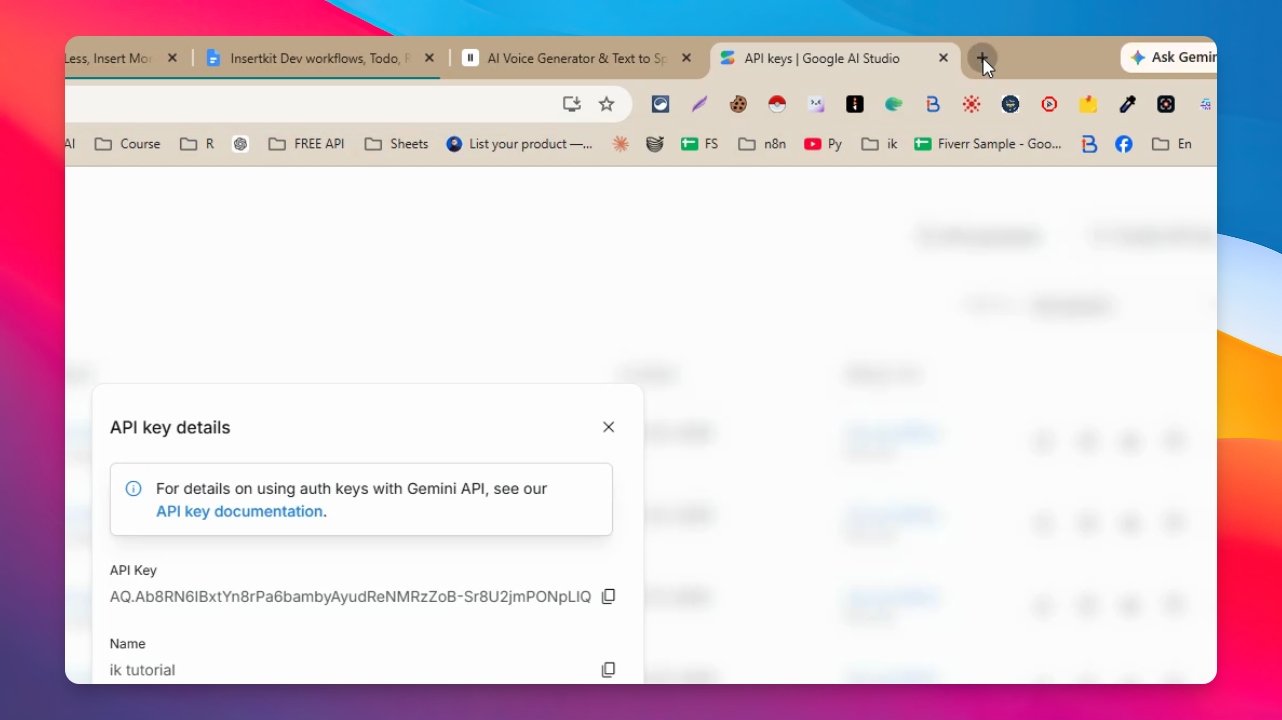
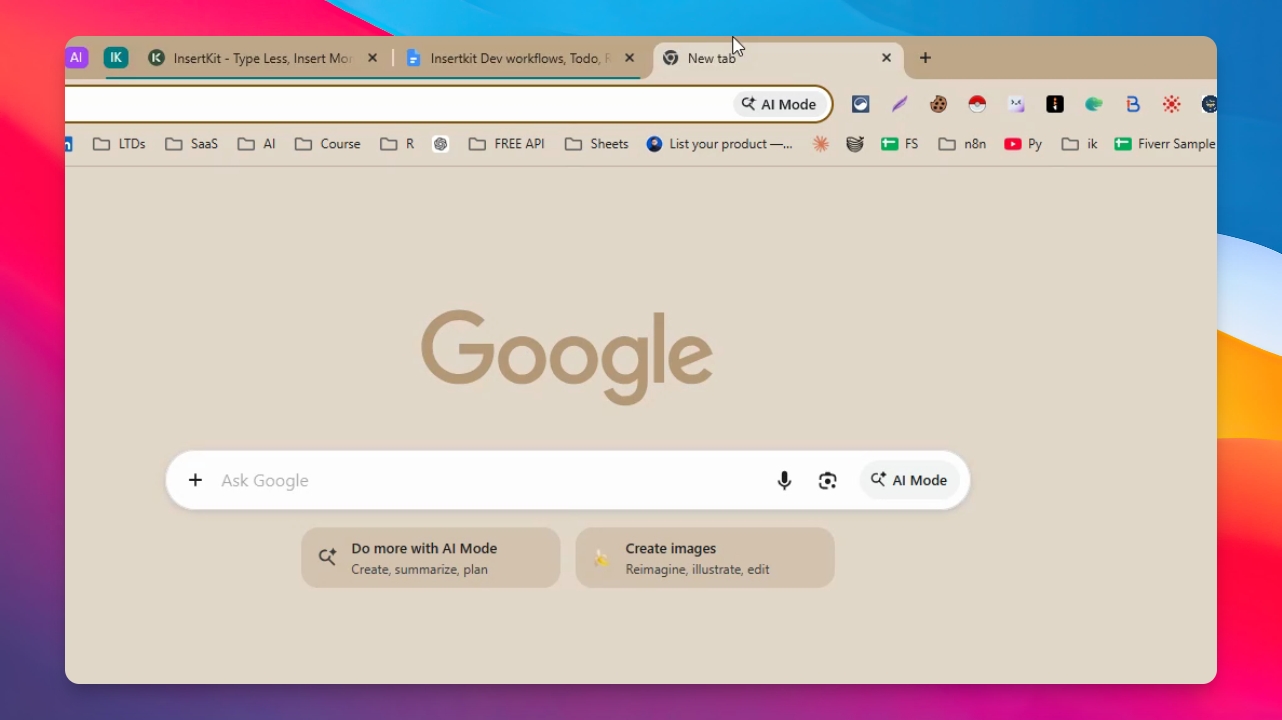
Search for Google AI Studio and go to aistudio.google.com. Click Get started and create your account. After account creation, go to the key section and create a new API key. Name your key and select or create a project if needed. Click Create key, then copy the API key.
In the desktop app, find the G Mini or Google Gemini section, paste the API key, and click Save.
Step 7: Explore Other Free Providers
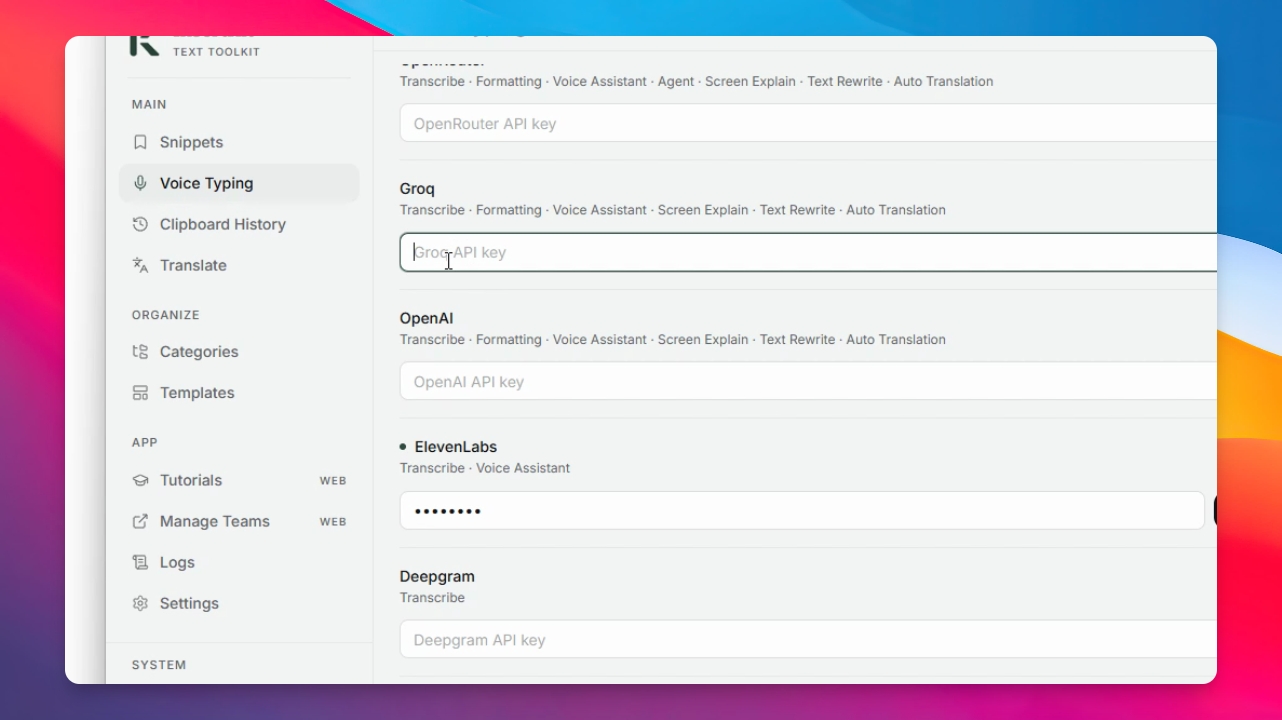
Other free providers like Groq are available. For faster responses, you can also connect an OpenRouter API key. If you have an OpenRouter API key, it is recommended to use it instead of Google Gemini.
Step 8: Choose Provider and Configure Settings
Go back to the voice typing tab. Select your preferred provider, such as 11 Labs Scribe V2, and keep spoken language set to auto detect for automatic language detection. You can also change the shortcut key for voice typing. For example, use Windows + Space. Optionally, enable dual language shortcuts or select a specific spoken language and provider.
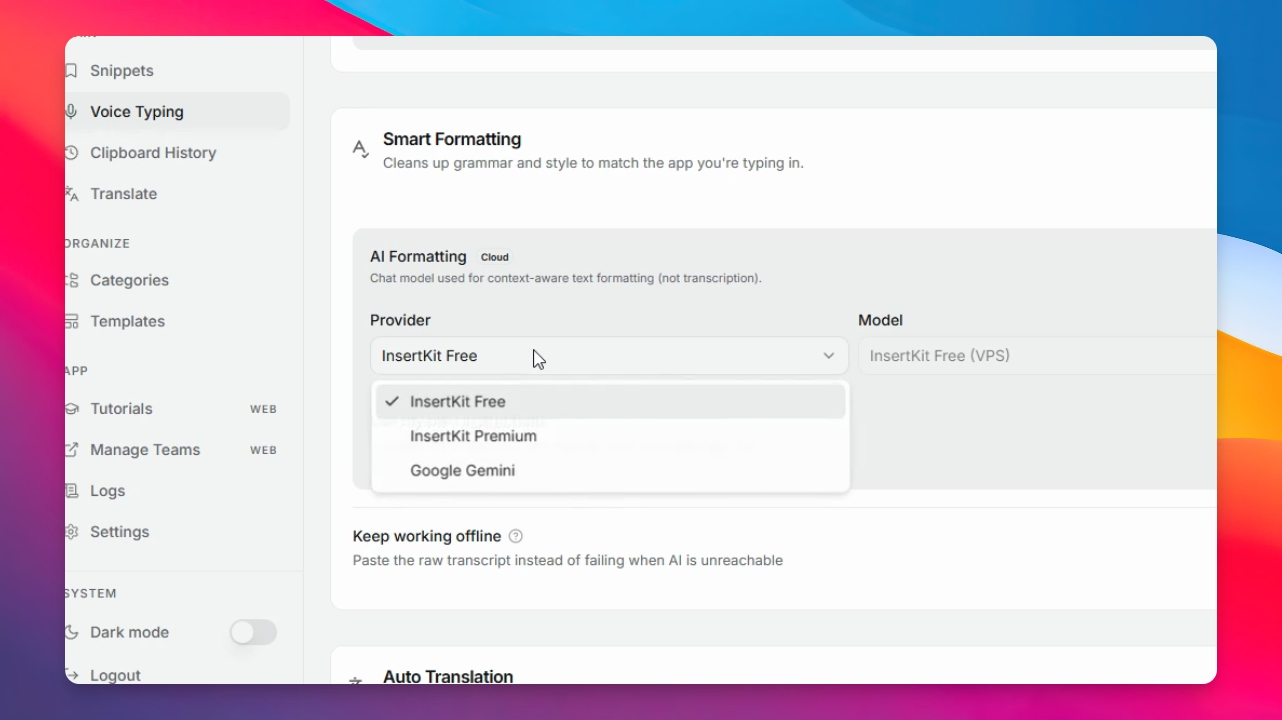
Step 9: Select Model for Gemini
If you added the Gemini API, select Gemini as the model. Choose a free model, such as Gemini 3.1 Flashlight, for fast and efficient transcription. You can also use OpenAI or OpenRouter if you have their API keys.
Step 10: Test Voice Typing
Open a blank Notepad or any text editor. Click the voice typing shortcut, speak your message, then click the shortcut again to stop. Your spoken words will be transcribed and inserted, properly formatted and punctuated.
That's it! Your voice typing setup is complete and ready to use. You can now enjoy fast, accurate voice transcription using your chosen provider and settings.