
Let's do it together!
Step 1: Log in
Log in to your InsertKit account to start the process.
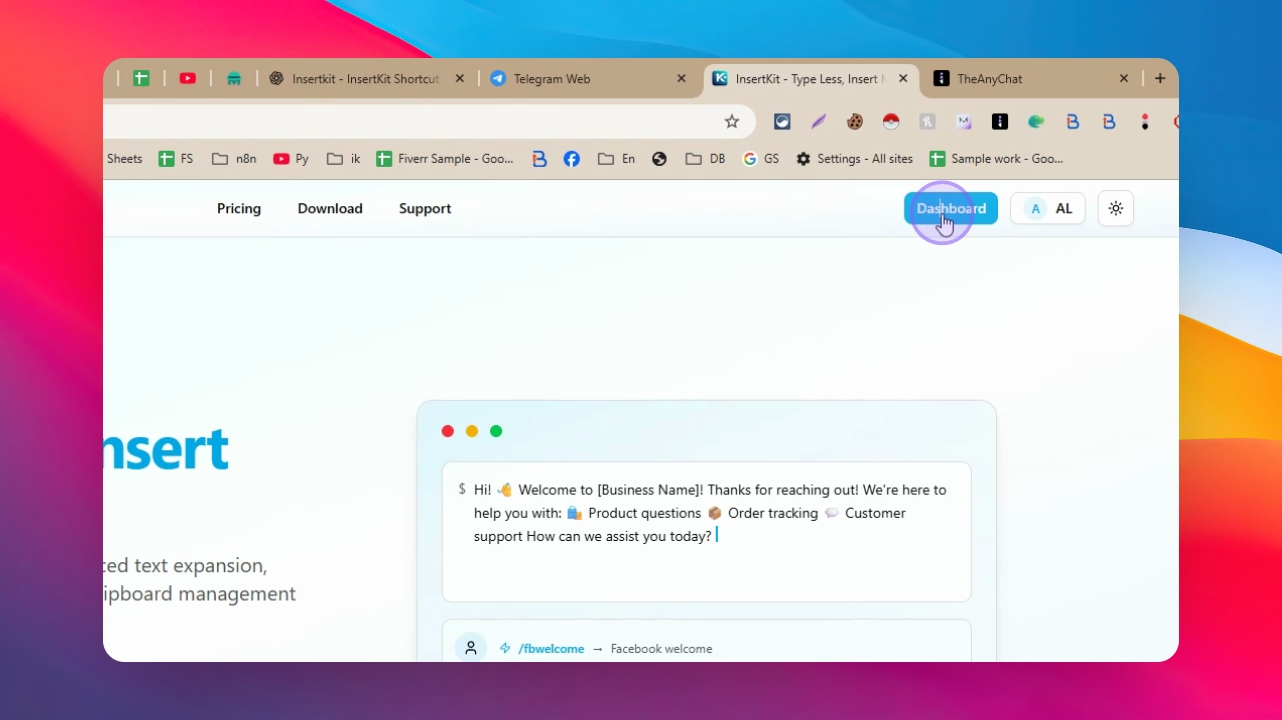
Step 2: Open Dashboard
Navigate to the Dashboard from the main interface.
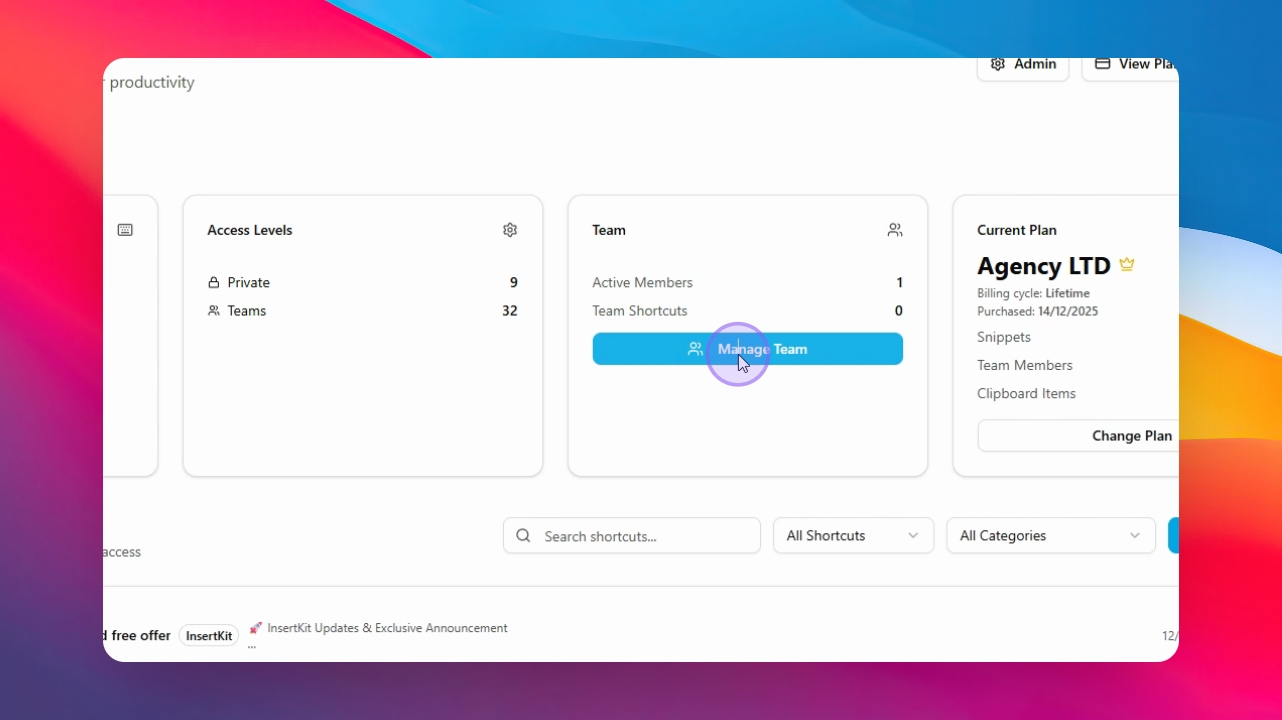
Step 3: Manage Team
Click on Manage Team to access team management options.
Step 4: Invite Team Members
Click Invite Members to start inviting new team members.
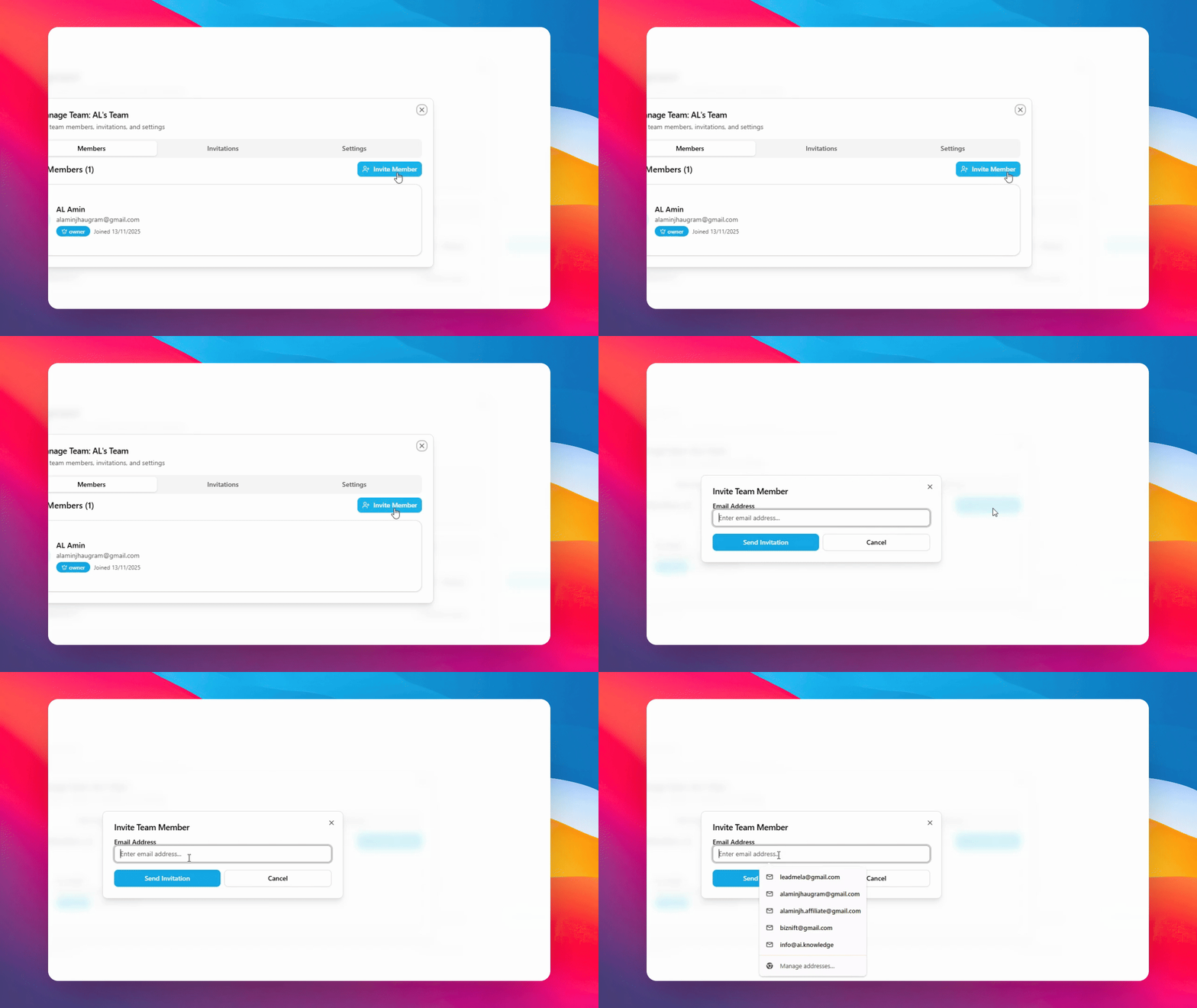
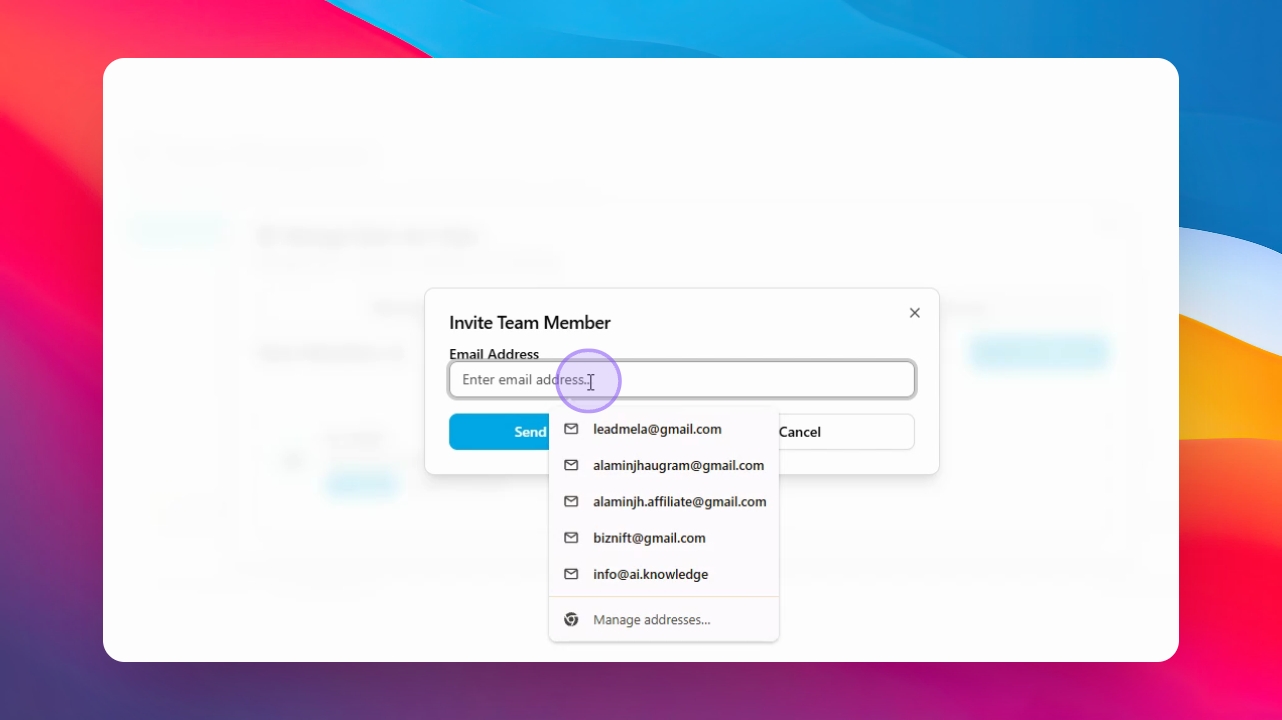
Step 5: Enter Email
Input your team member's email address. If it contains a dot, remove it before proceeding.
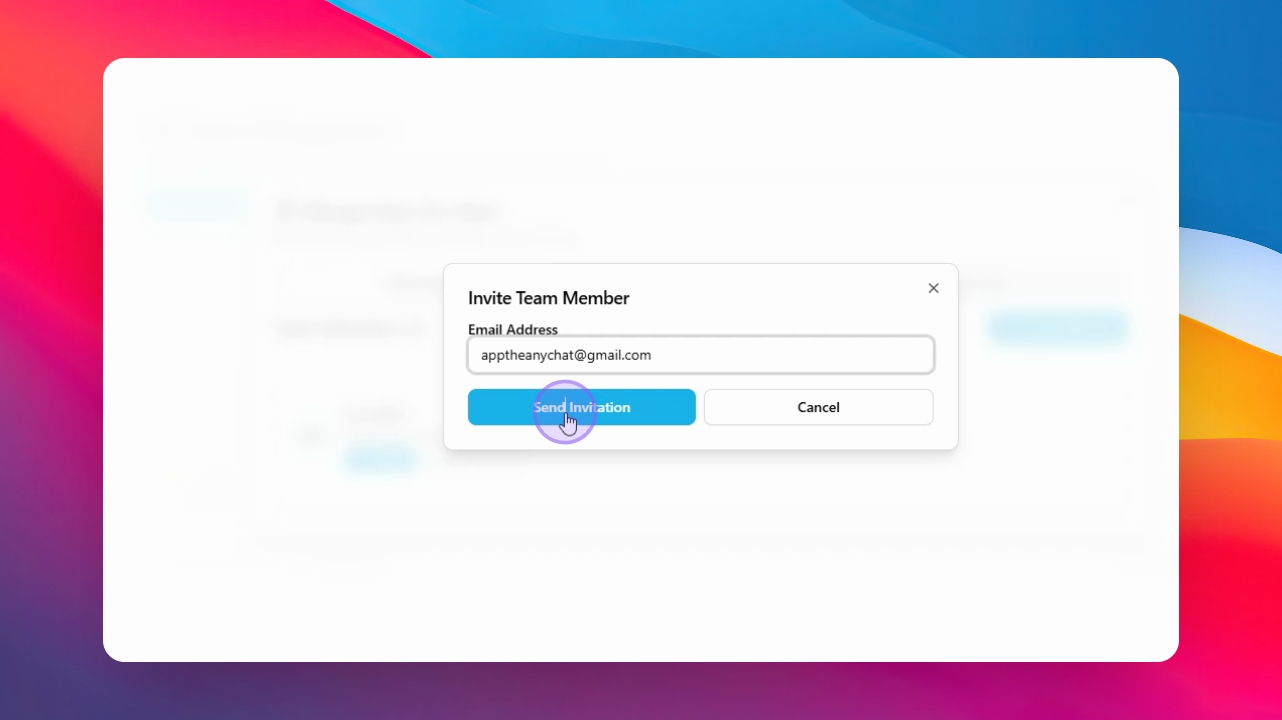
Step 6: Send Invitation
Click Send Invitation to send the invitation to the specified email.
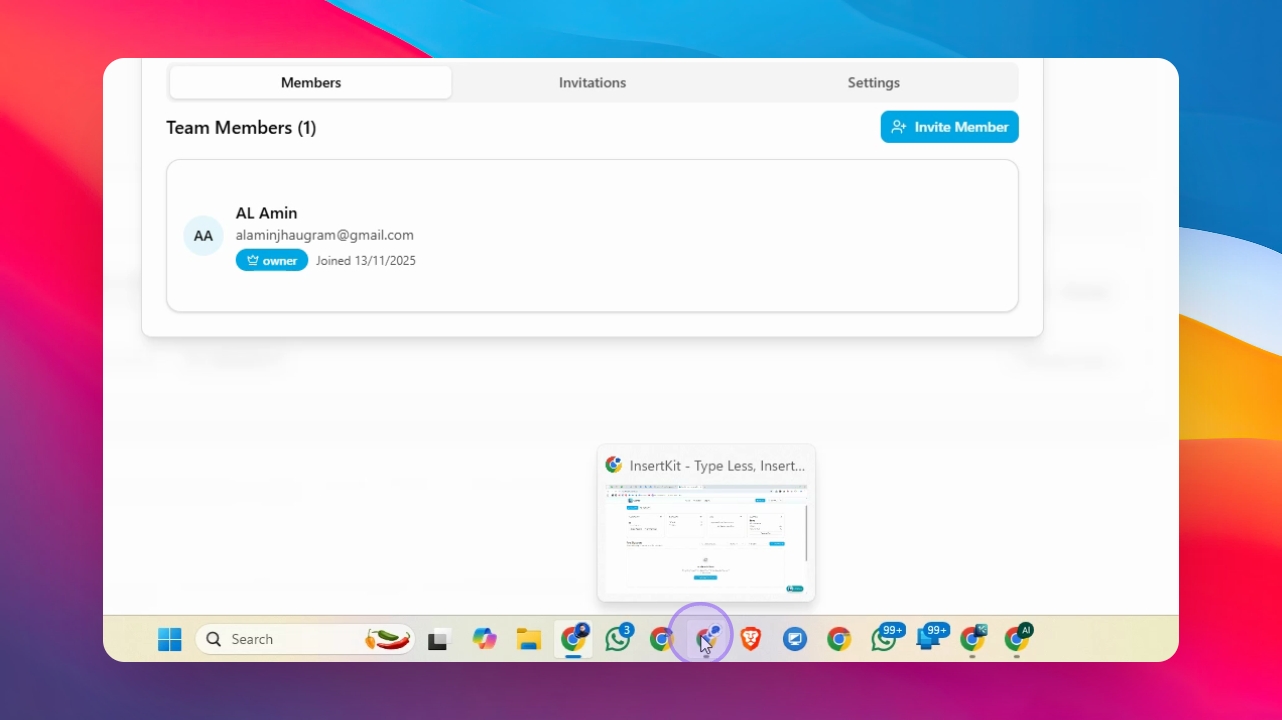
Step 7: Accept Invitation
Your team member can accept the invitation from their dashboard after logging in.
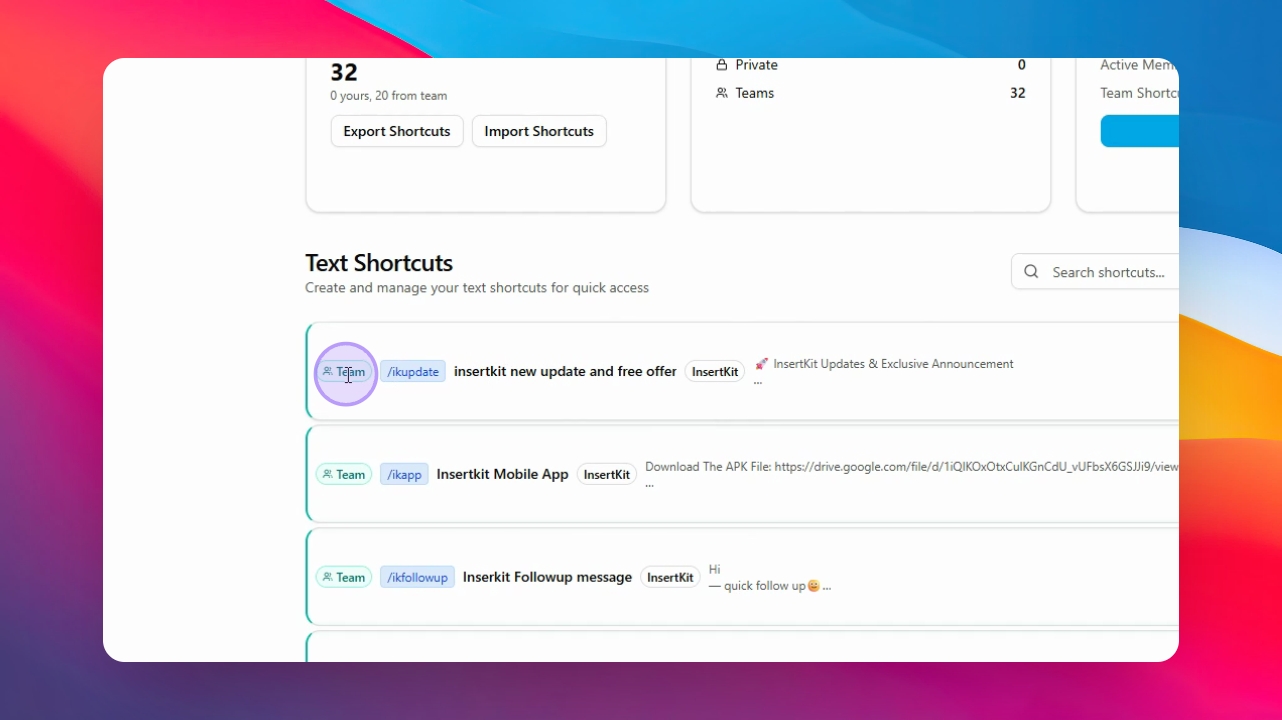
Step 8: Check Team Access
Reload the page to see all shortcuts that have team access.
Step 9: Use Invitation Code
Alternatively, use the team invitation code to join. You can change this code if needed.
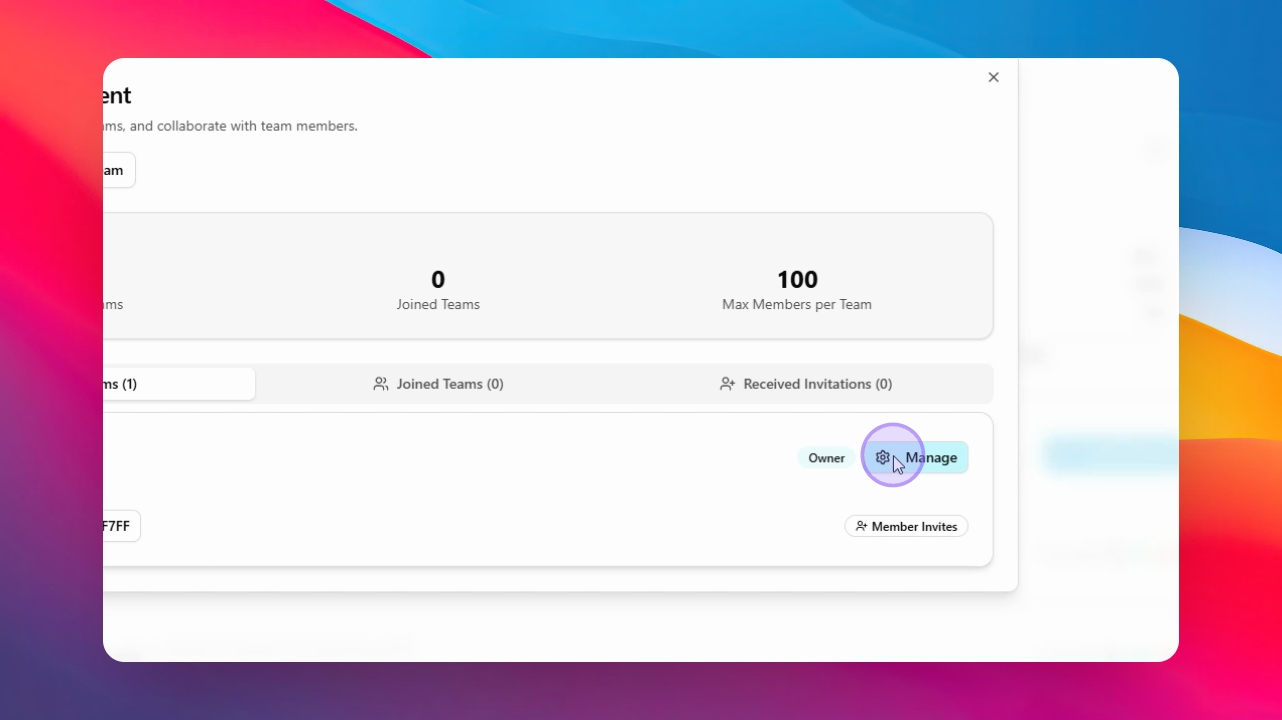
Step 10: Regenerate Code
After a member joins, go to Manage → Settings and click Regenerate to change the code.
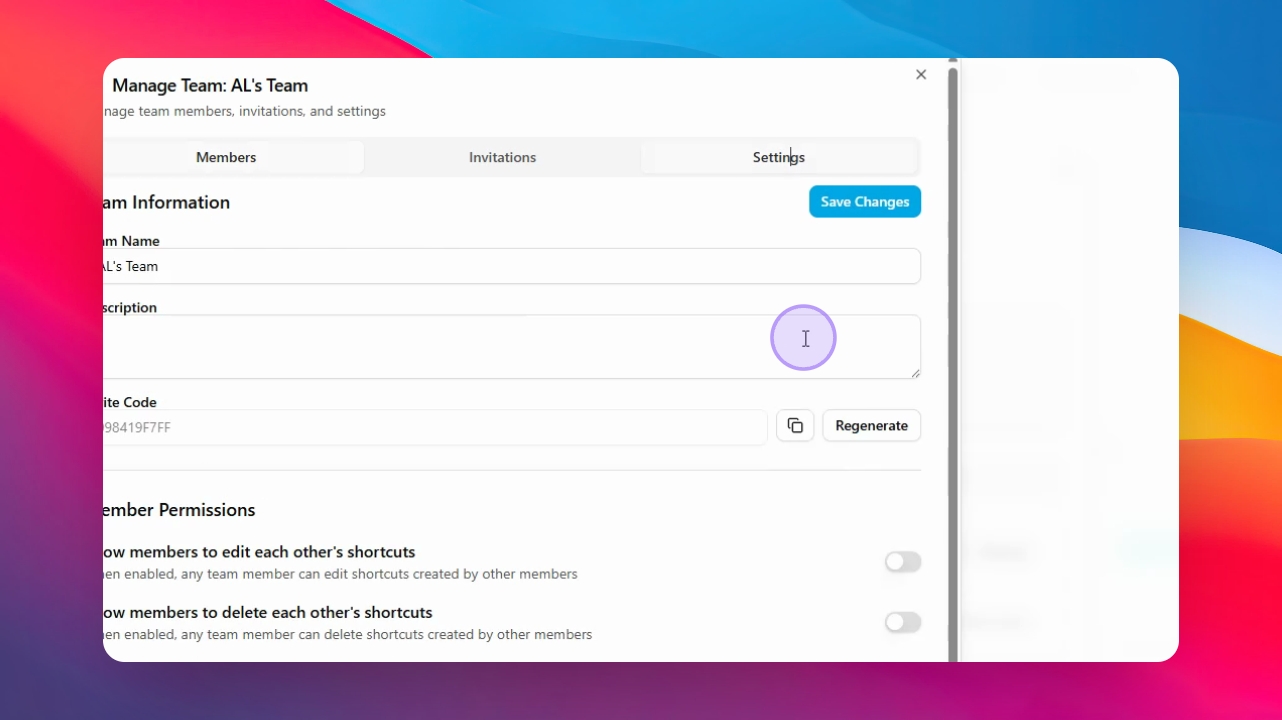
Step 11: Join Team with Code
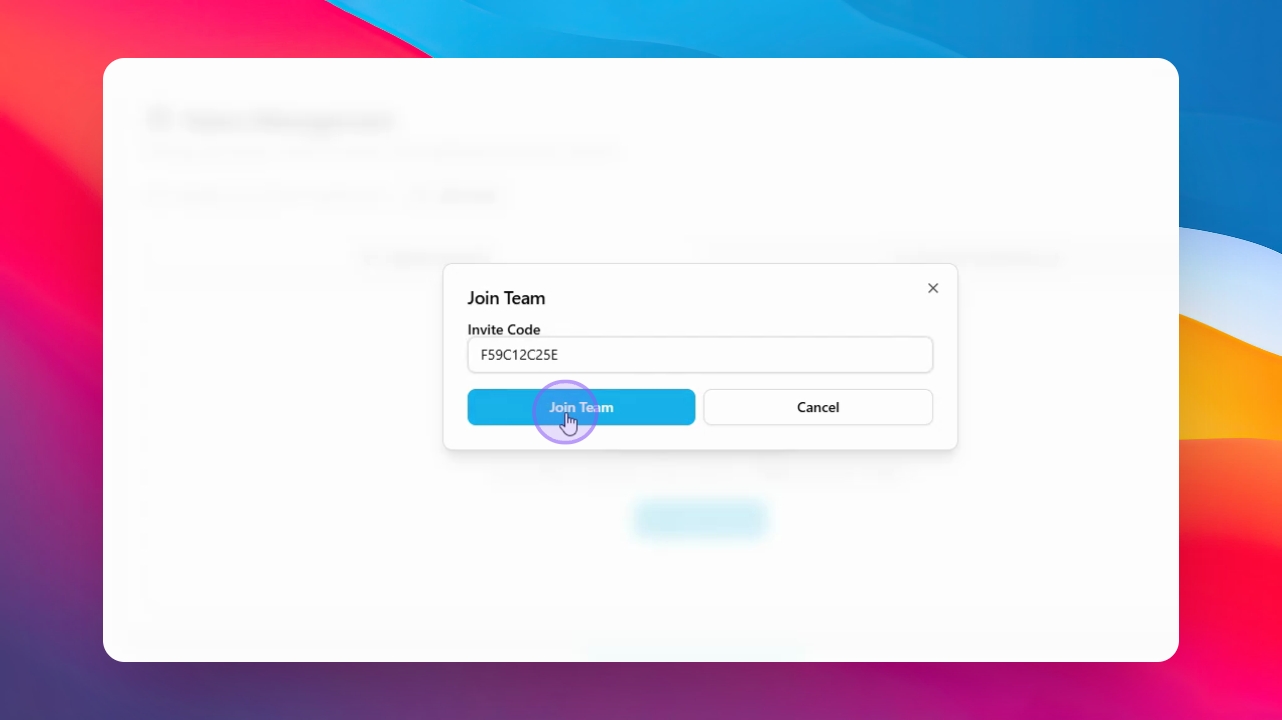
Your user can click Join or Create Team, then Join Team, and input the code.
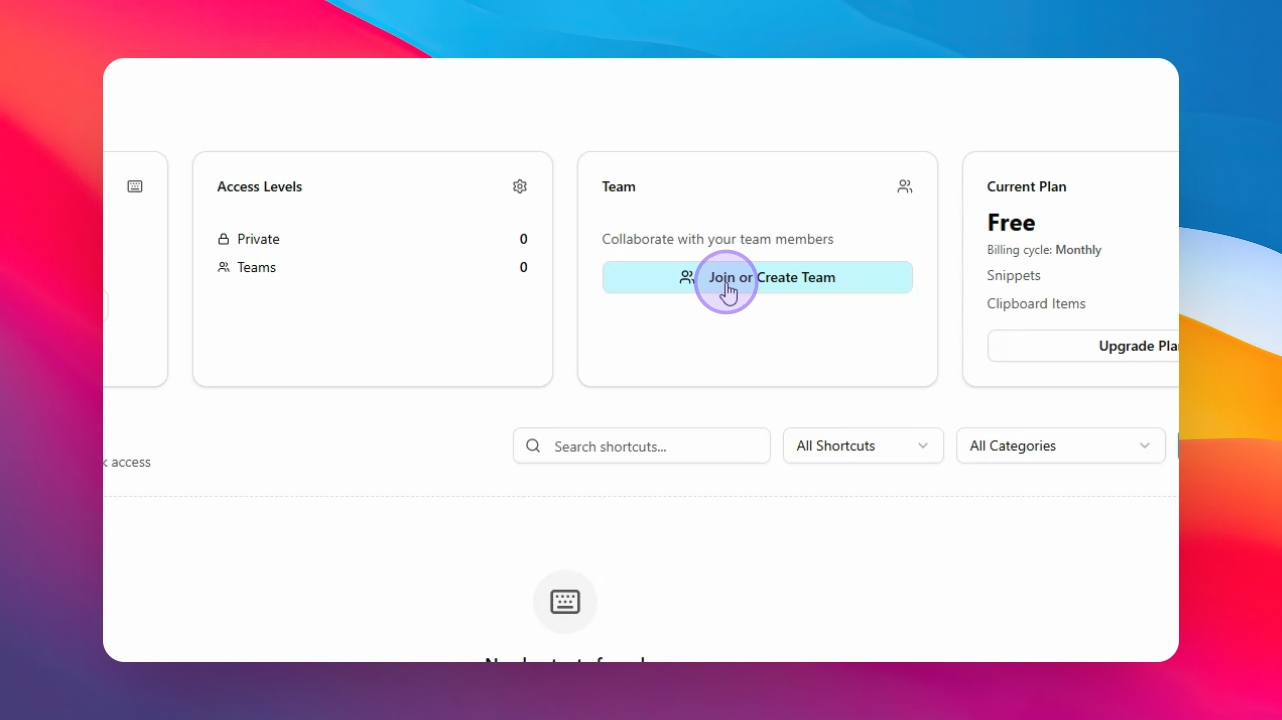
Step 12: Confirm Team Membership
Once the code is entered, click Join Team to confirm joining.