
This guide will show you how to download the InsertKit local model and use it for voice typing. Let's look at the steps:
Step 1: Open Voice Typing Settings
Open your desktop app, click Voice Typing, then click Advance in the advanced section.
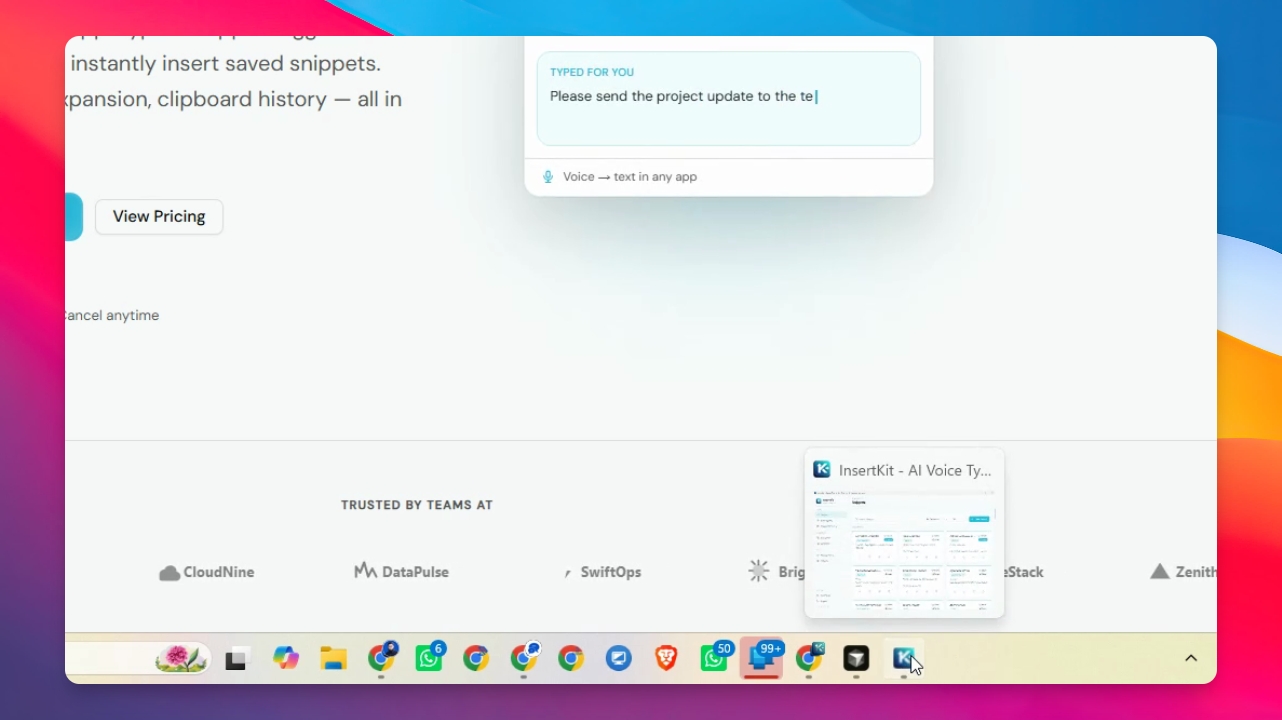
Step 2: Select Local Offline Whisper
Click the drop-down menu and select Local Offline Whisper.
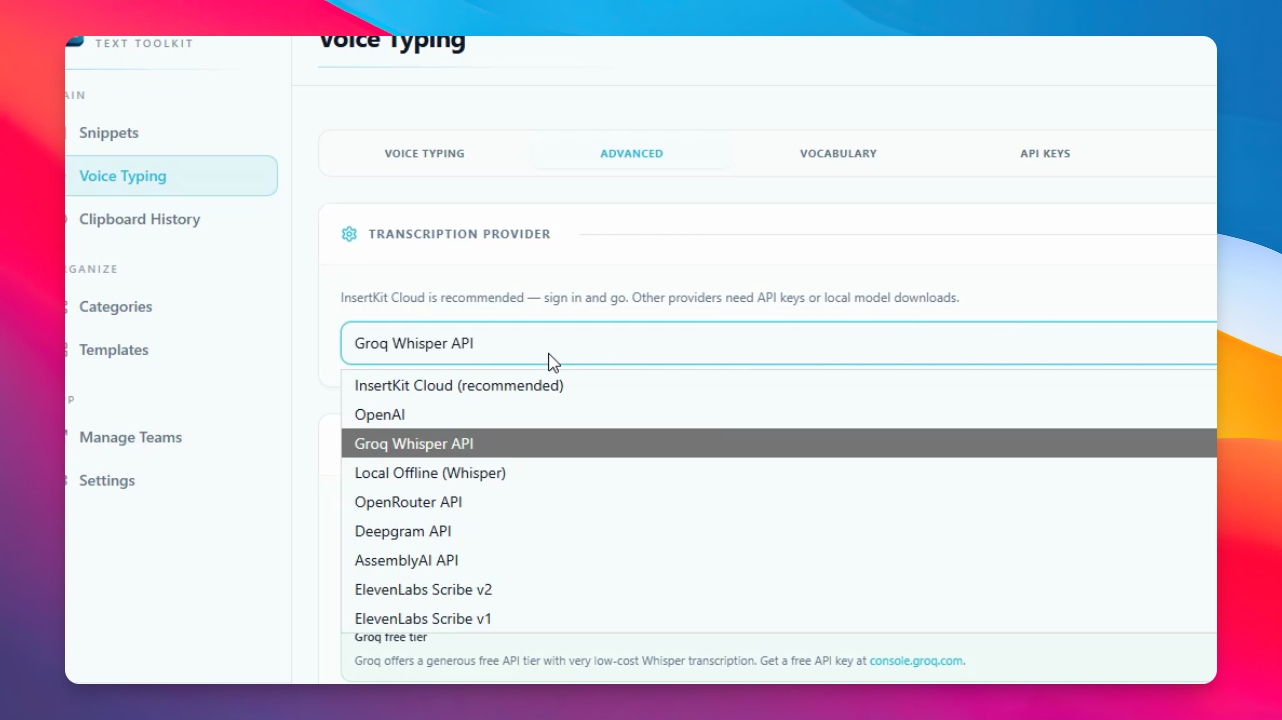
Step 3: Find Local Models
Scroll down to see the available local models.
Step 4: Download a Local Model
Choose the model you want to download. For example, click small and then click Download.
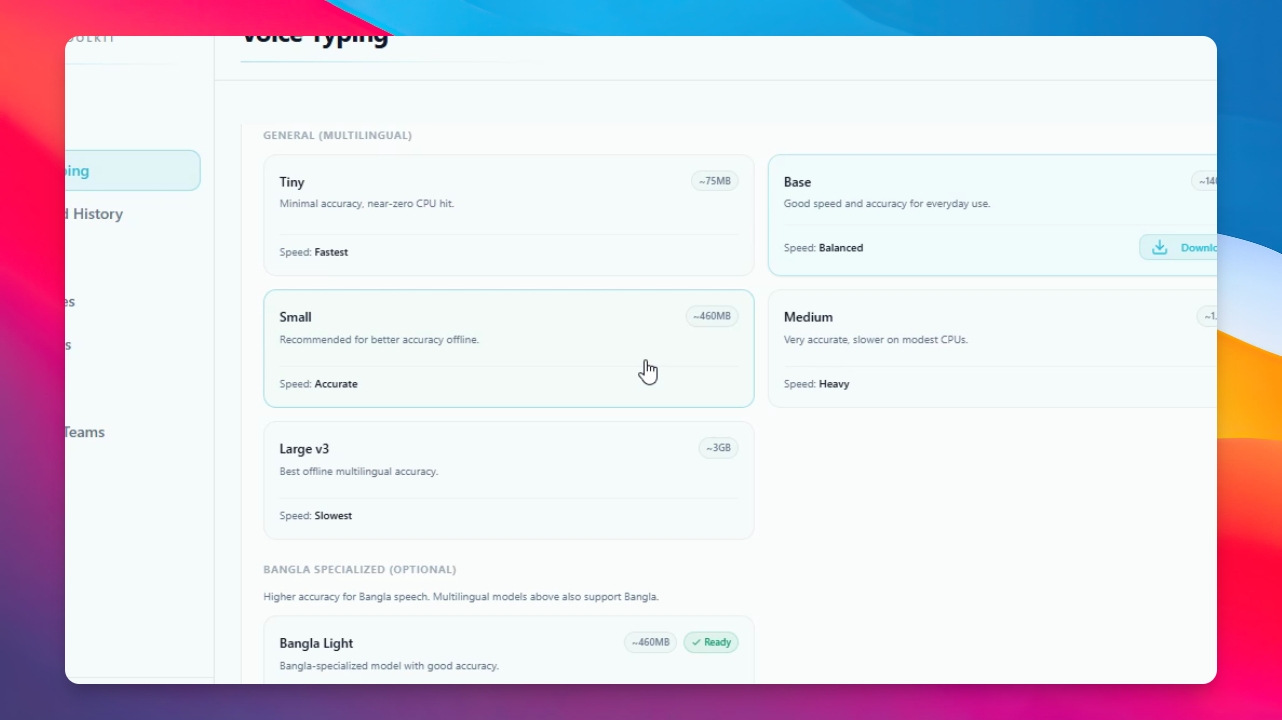
Step 5: Wait for Download to Complete
The download will start and complete automatically.
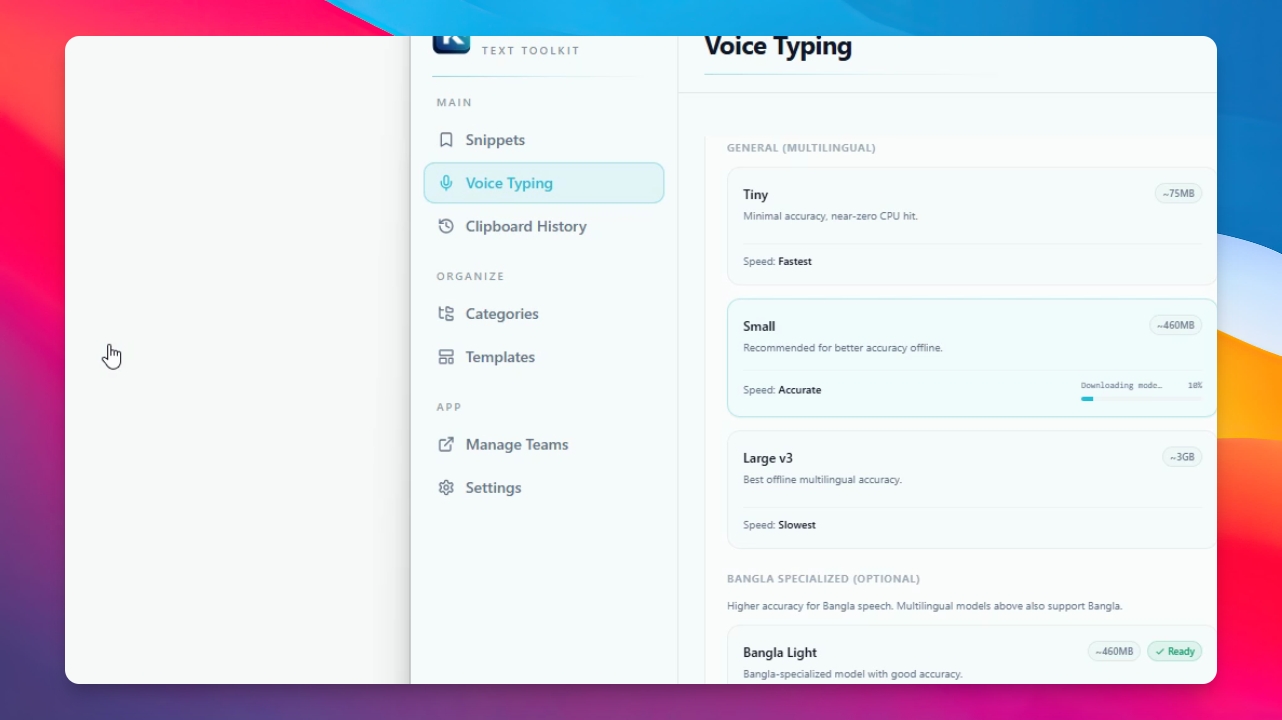
Step 6: Select the Downloaded Model
Select the downloaded model to get ready for use.
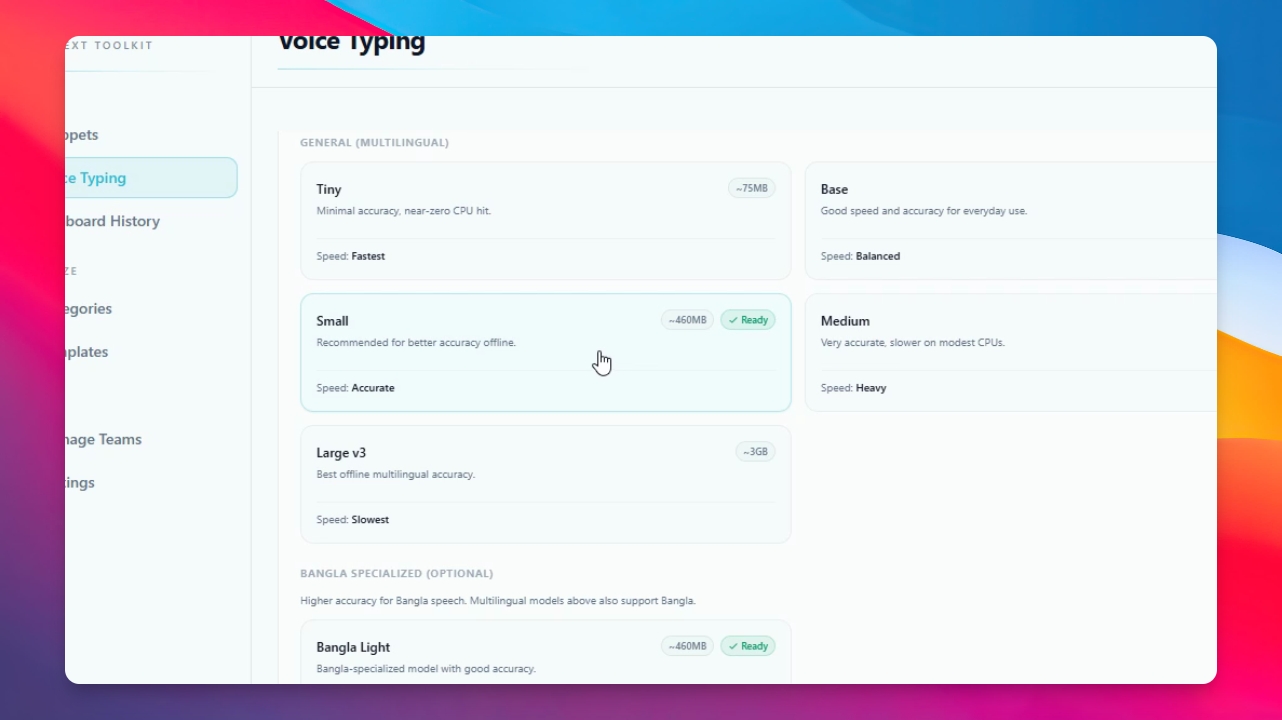
Step 7: Confirm Model Selection
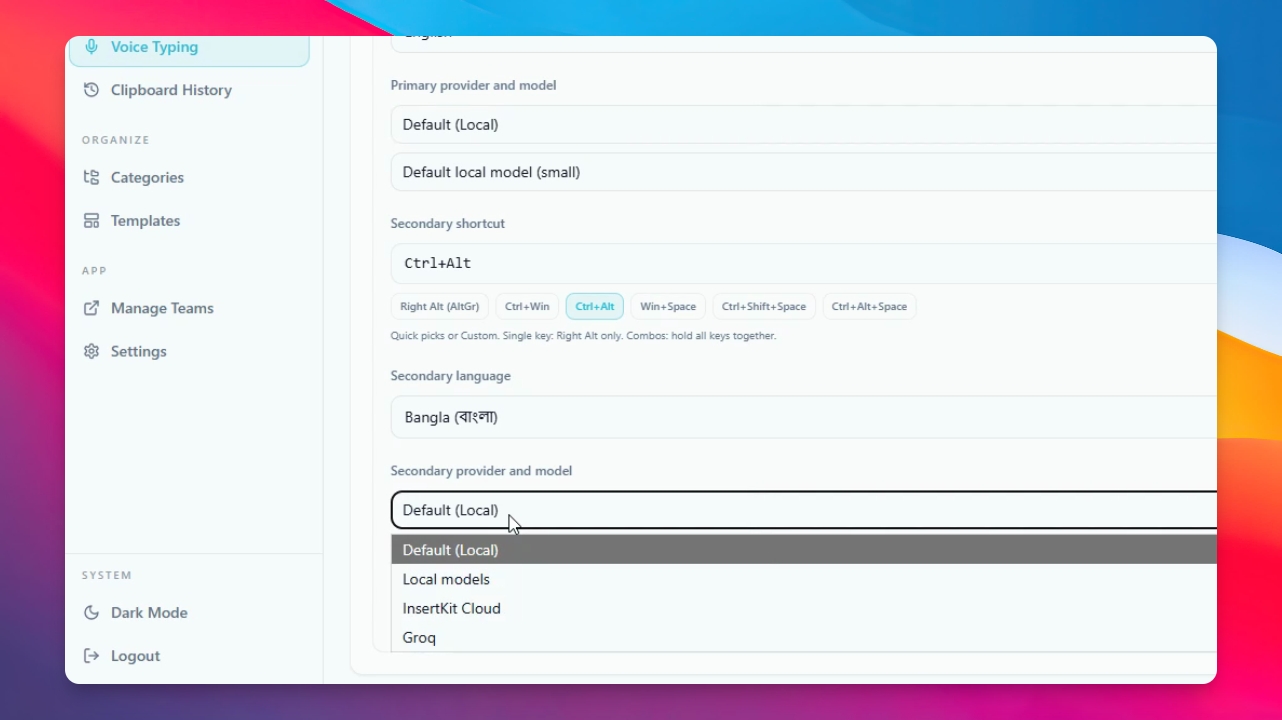
Go back to Voice Typing and scroll down. The local model should be selected. You can change it if needed.
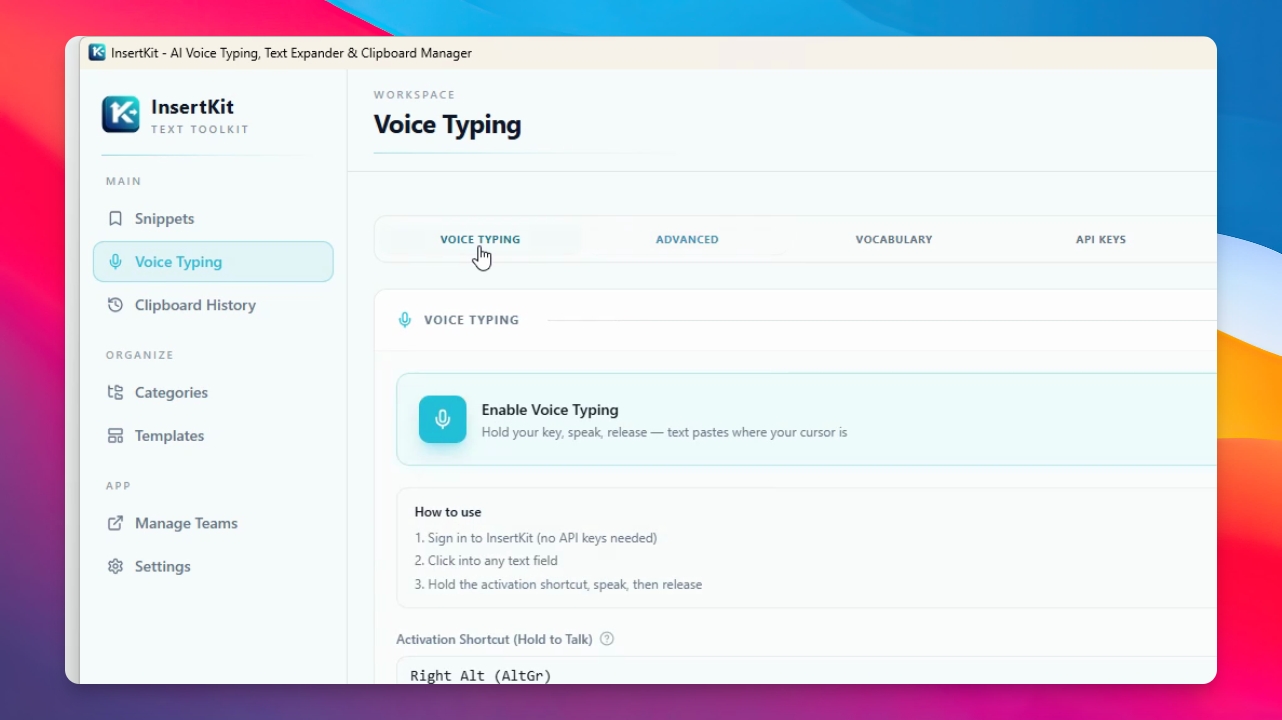
You can use both a primary local model and a secondary cloud model, or vice versa. The setup is fully customizable.
Step 8: Test Voice Typing
Open any text box, press your shortcut key, and speak to test the local model.
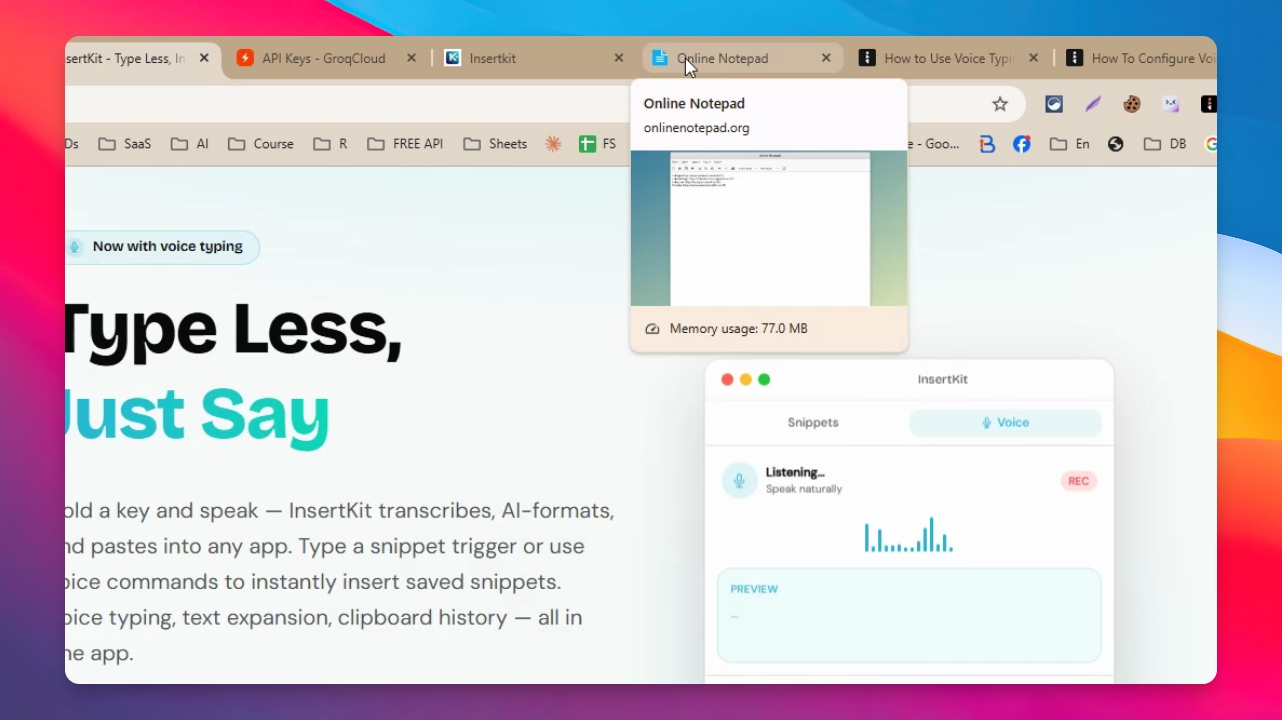
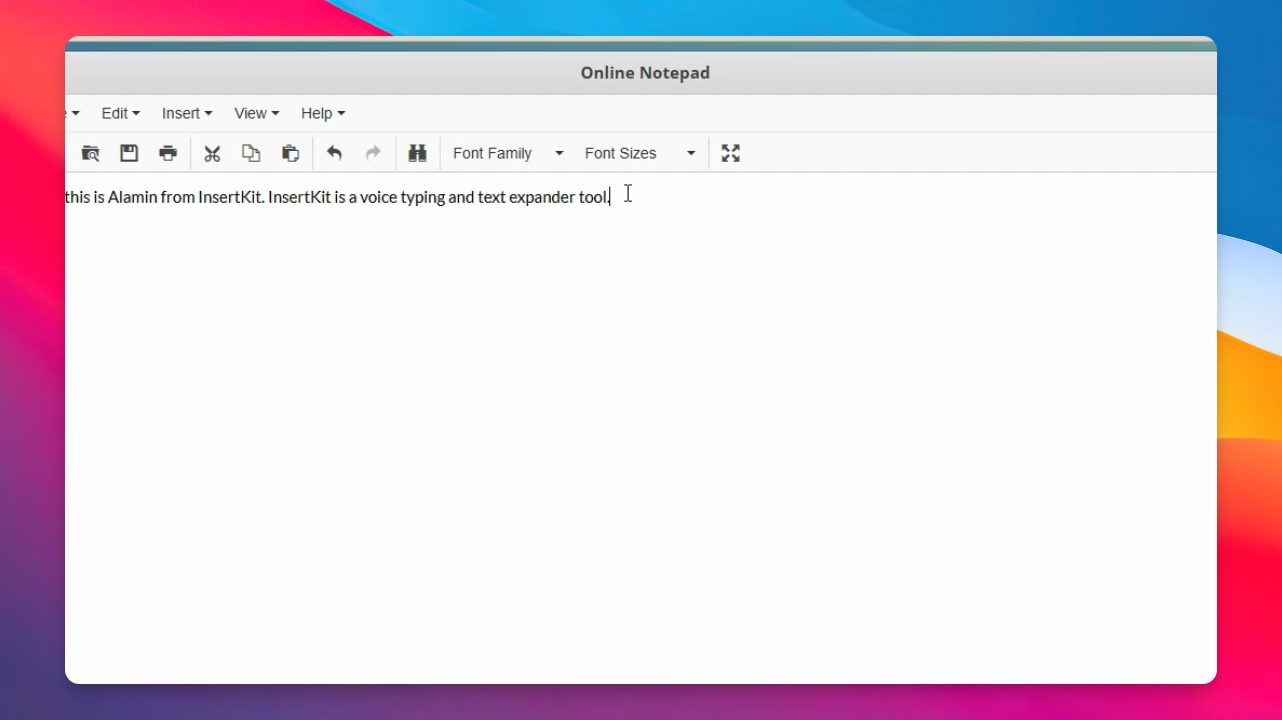
InsertKit is a voice typing and text expander tool. As you can see, the output will appear in your text box.
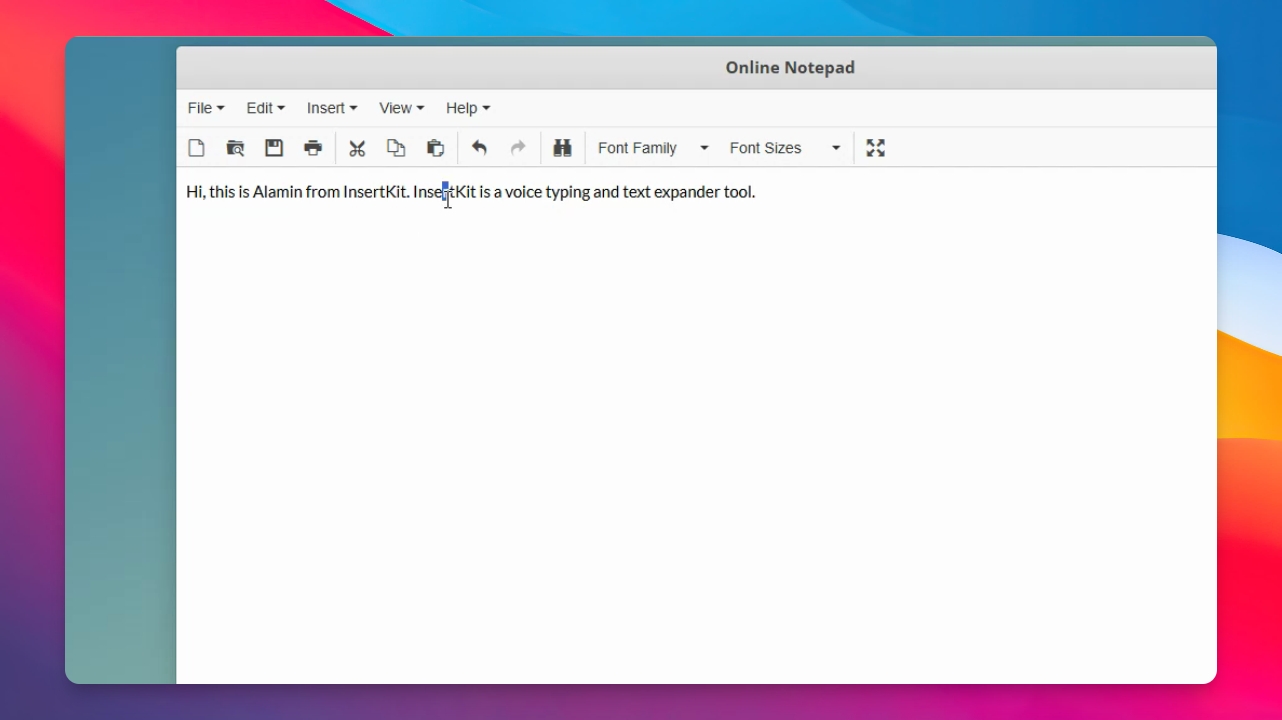
This is how you can use the Local Model in InsertKit.