

This guide will show you how to create a snippet variation using the desktop app. Let's look at the steps:
Step 1: Open the Desktop App
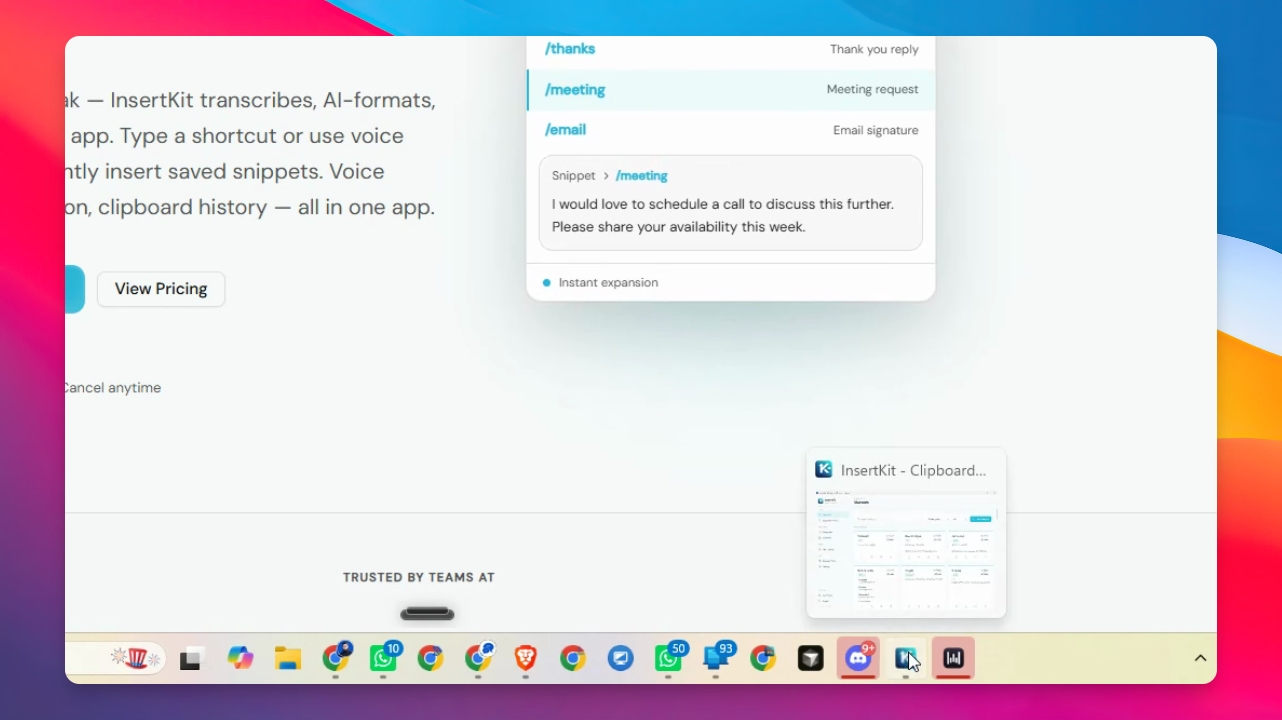
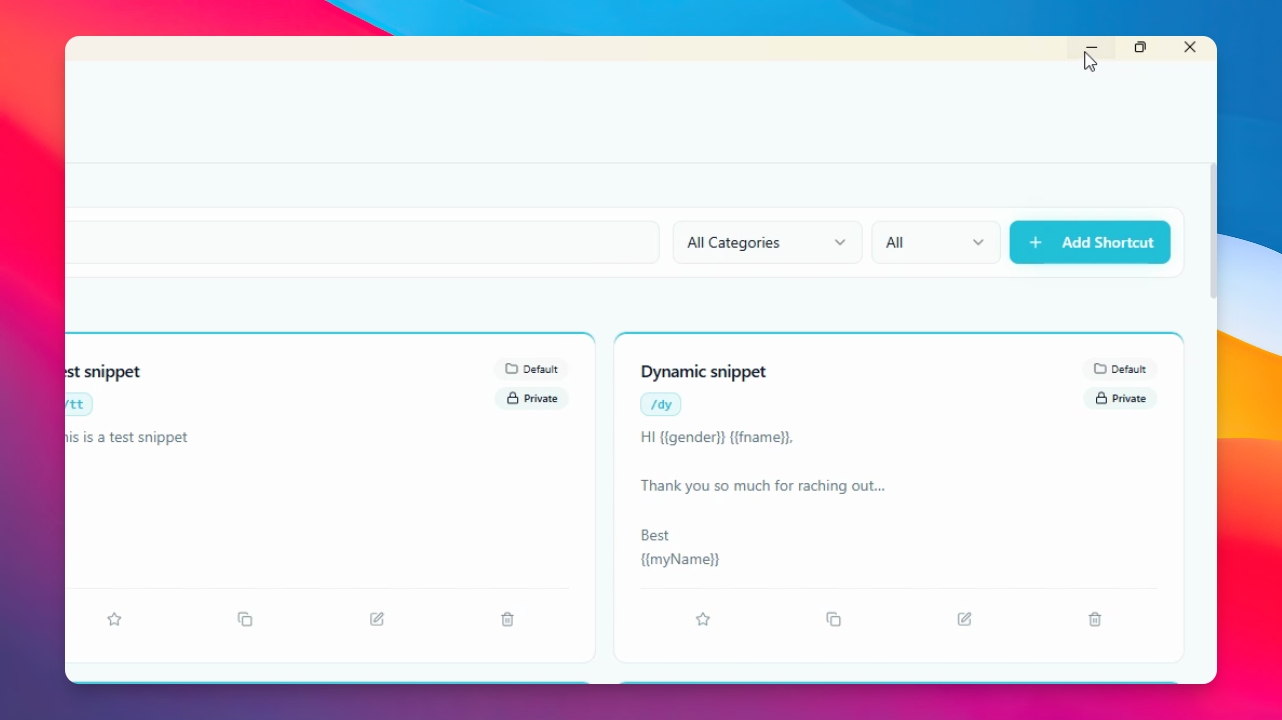
Open the desktop app or access the dashboard from the website to get started.
Step 2: Add a New Shortcut
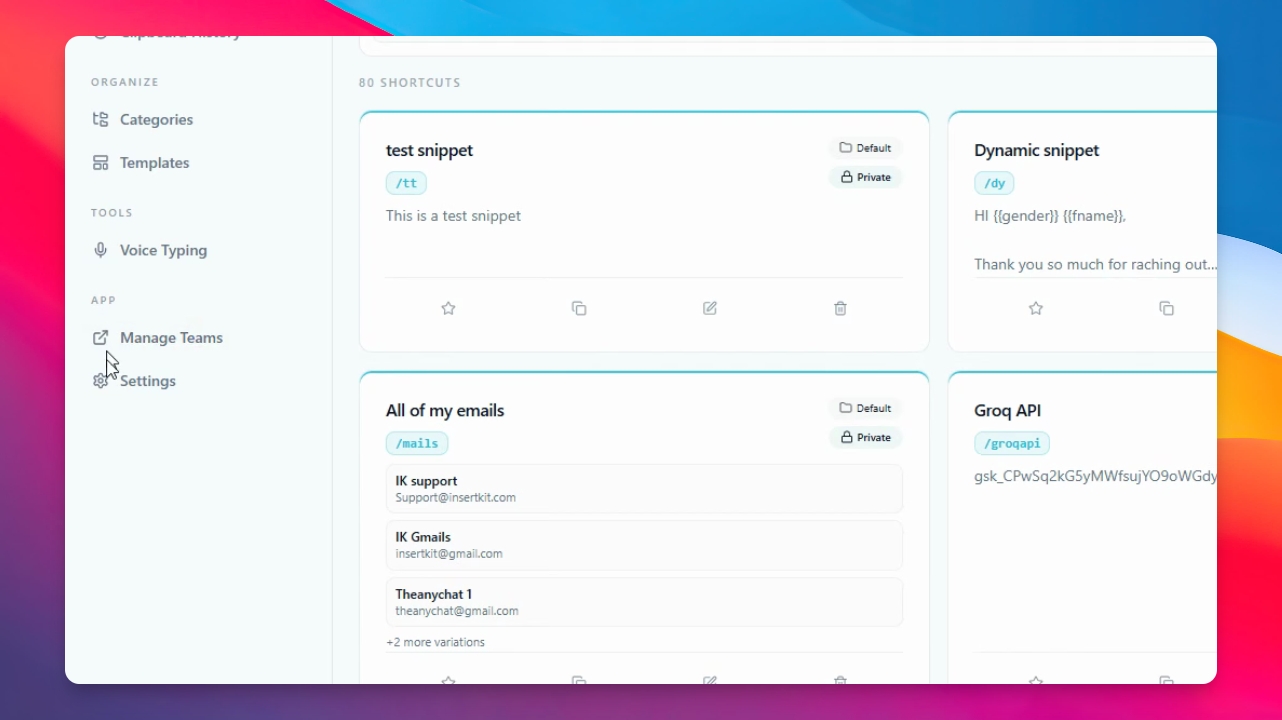
Click Add shortcut. In the trigger field, type your trigger, such as social media links. Then, enter a title for your shortcut.
Step 3: Enable Shortcut Variation
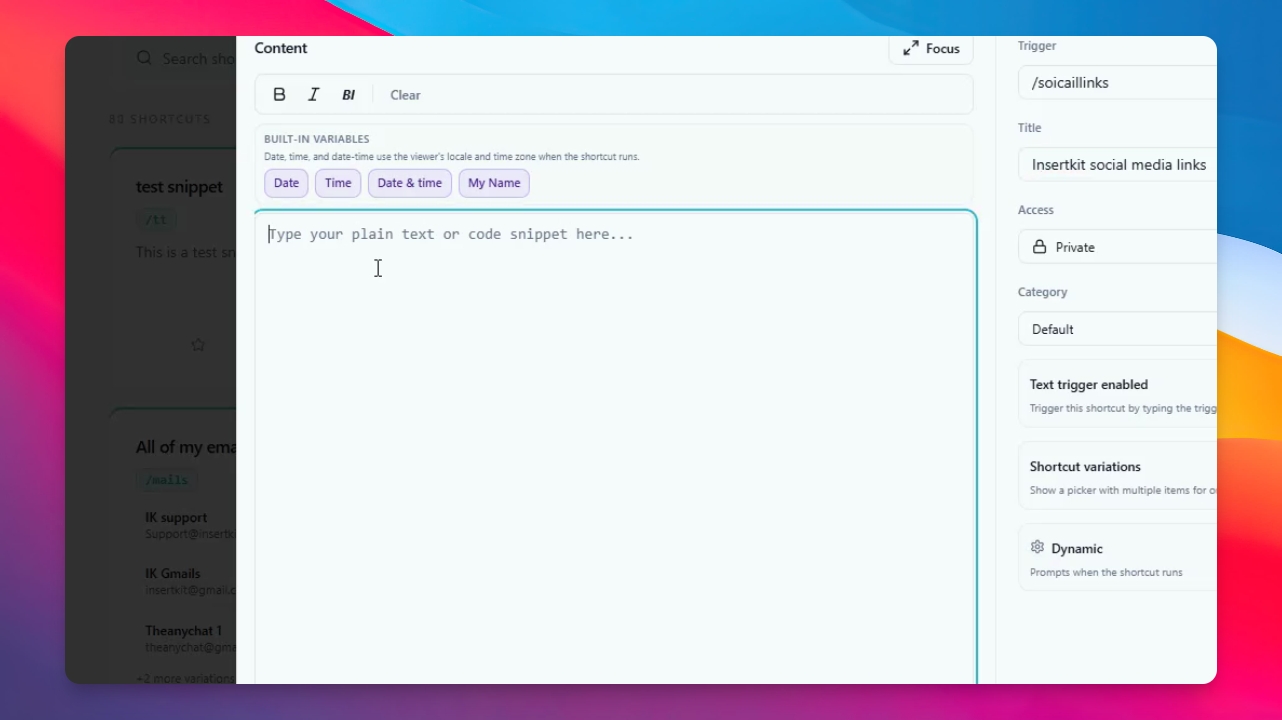
Instead of adding content directly, enable the shortcut variation option. Click the toggle to enable it. A new UI will appear for adding variations.
Step 4: Add Variation Items
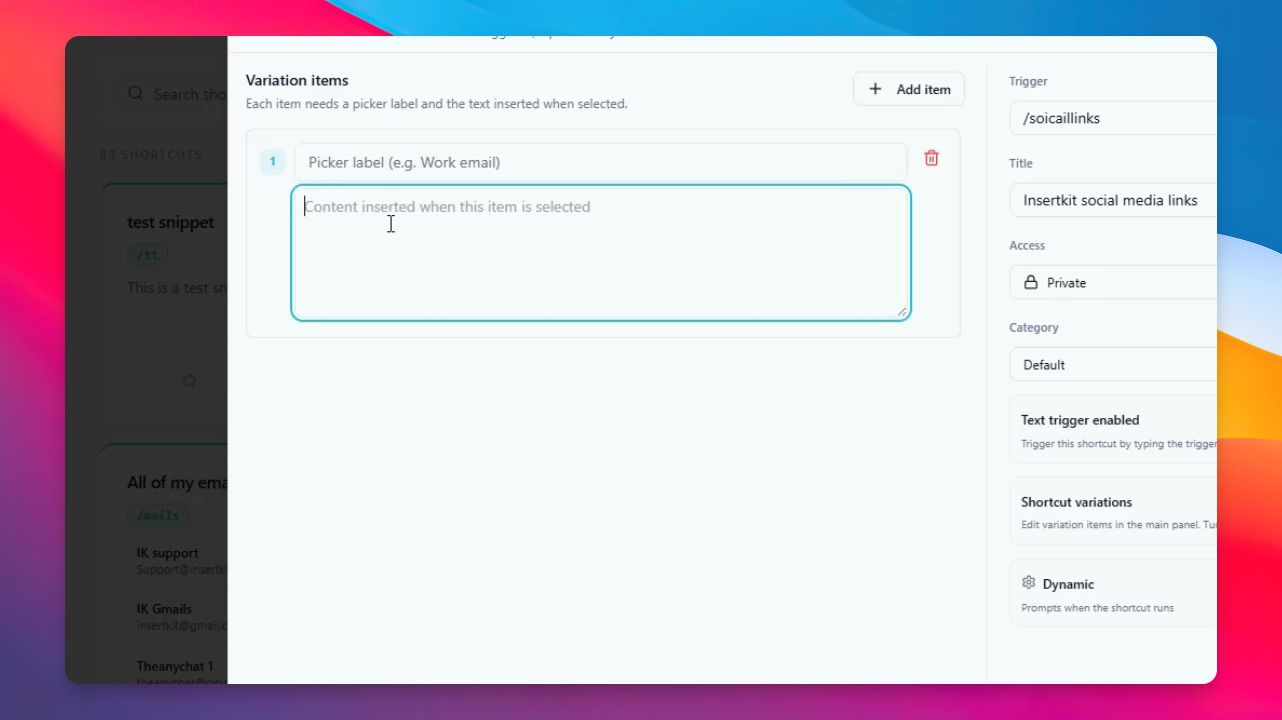
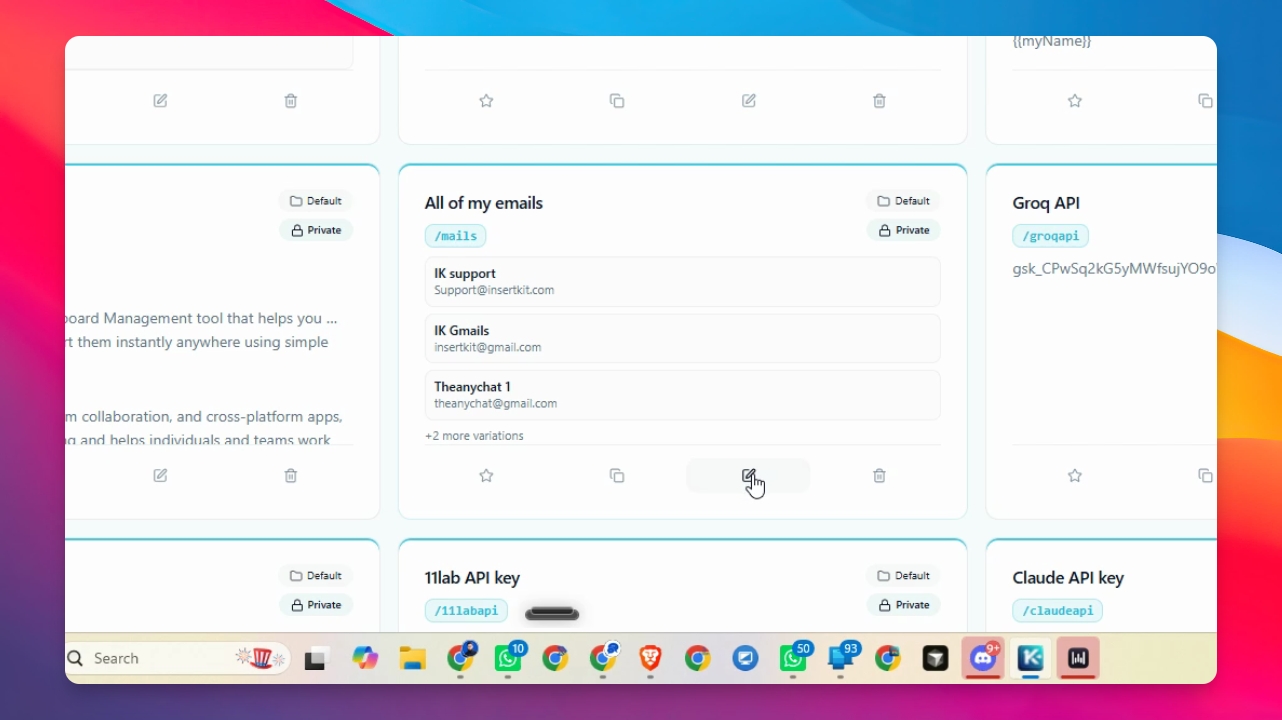
For each variation, enter a short name and the corresponding content. For example, label one as ik facebook and add the Facebook URL. Click Add item to add more variations, such as other social links or emails. You can type or paste your content for each item.
Step 5: Create the Shortcut
Once you have added all your variations, click Create shortcut to save it.
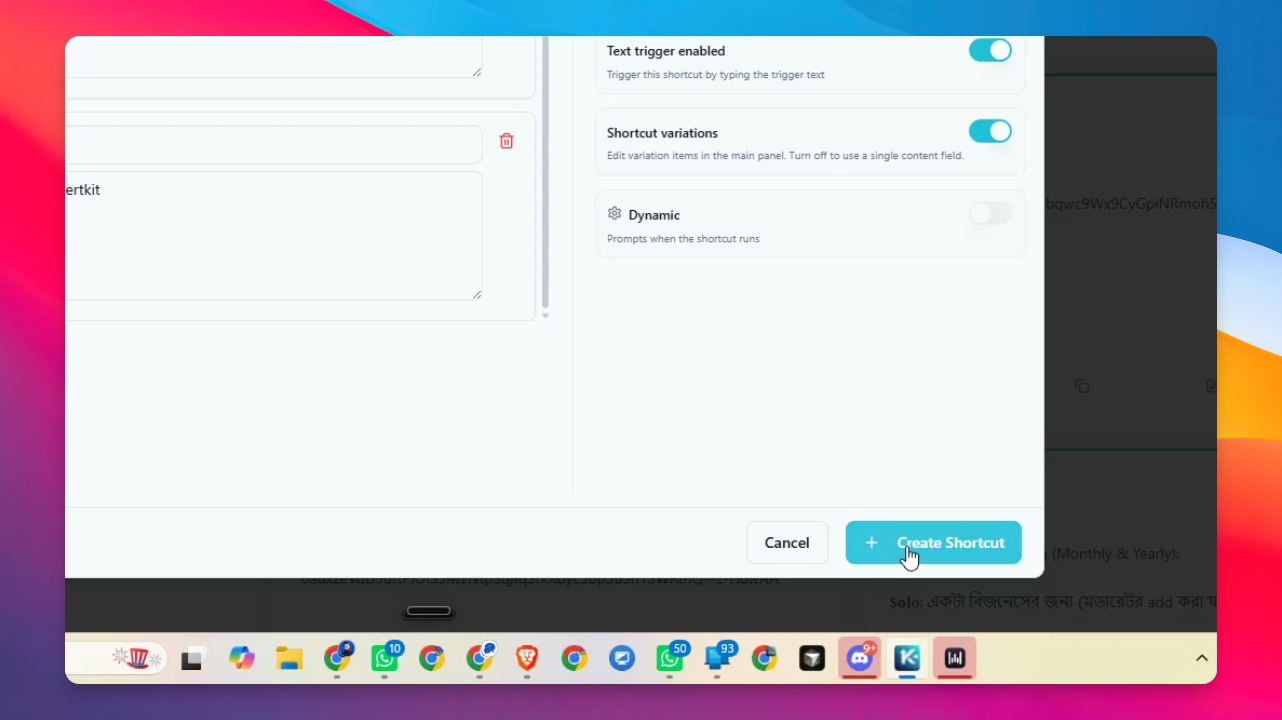
You can create many different use cases with this feature, such as storing multiple emails or links. The possibilities are endless.
Step 6: Use Your Snippet Variations
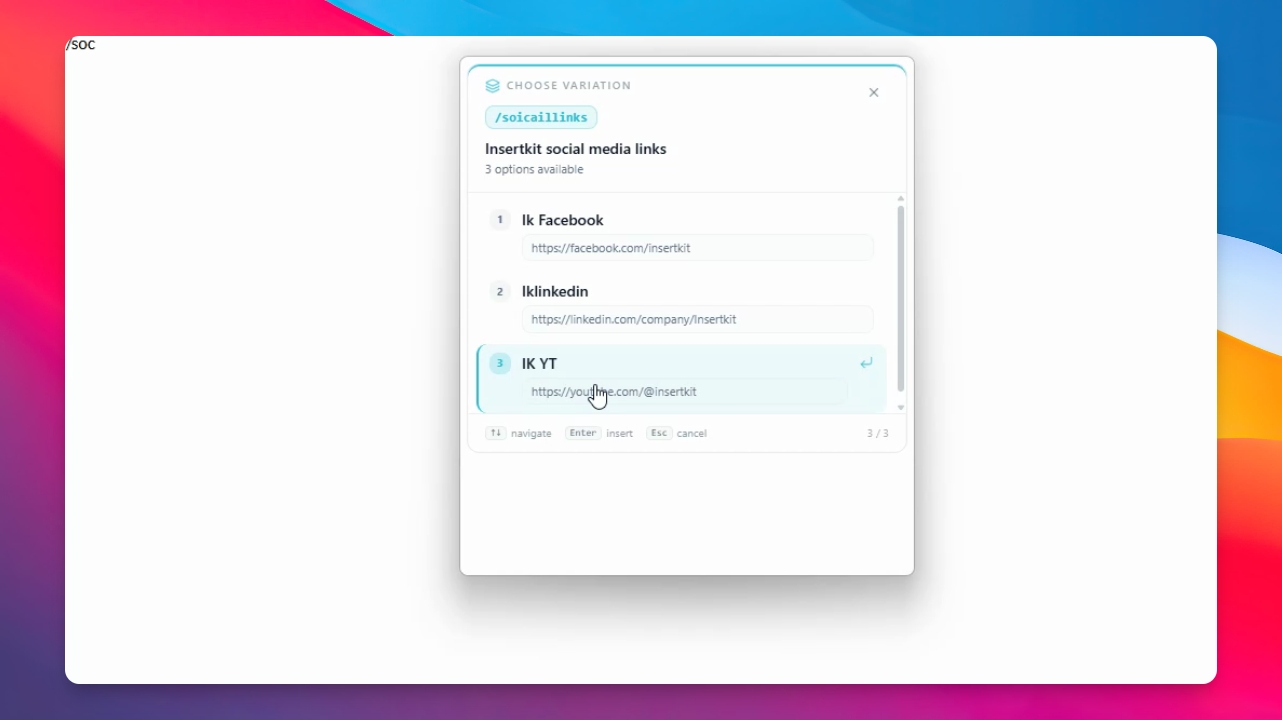
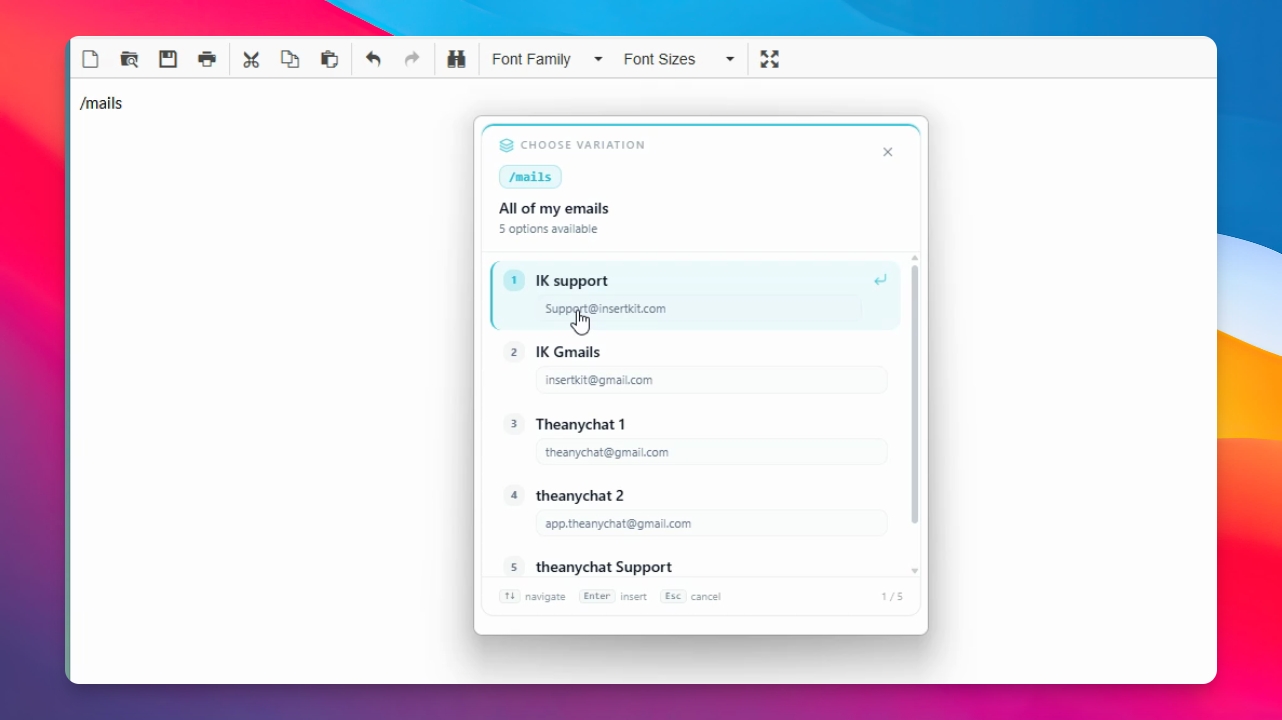
To use your shortcut, open any text field (e.g., Notepad, Gmail, Slack, or a comment box). Type your trigger, such as /social links. If you make a typo, you can also select the shortcut from the pop-up menu.
Step 7: Insert a Variation
When the pop-up appears, select the item you want to insert, such as your YouTube channel link. Click the item, and the content will be inserted into your text field.
Step 8: Try More Examples
You can save and insert other types of content, like email addresses. Simply click the item you want, and it will be inserted where your cursor is.
Now you know how to create and use snippet shortcuts with variations for different use cases.