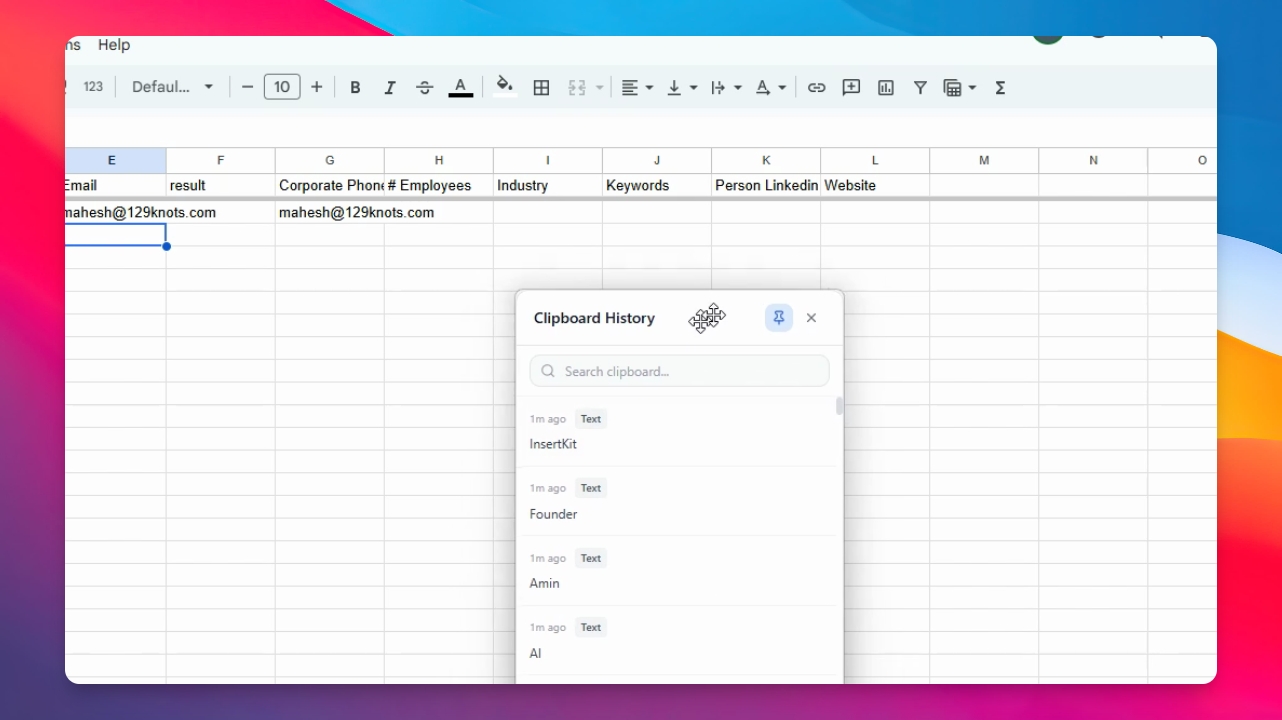

This guide will show you how to manage your clipboard using InsertKit. With features like voice typing, smart text snippets, and dynamic templates, InsertKit also offers powerful clipboard management. Let's look at the steps:
Step 1: Open Clipboard Popup
Press Ctrl + Shift + Z to open the InsertKit clipboard popup. This popup instantly displays all your copied items.
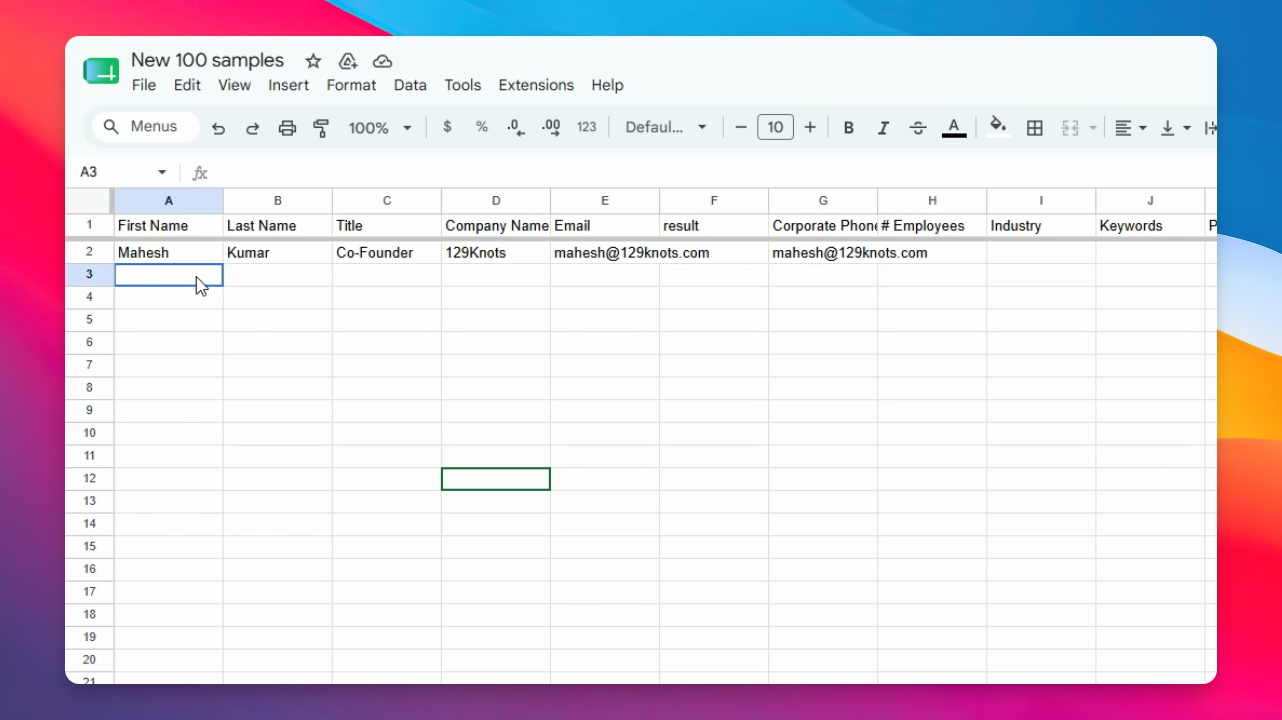
Step 2: Manage Clipboard Popup
You can drag and manage the clipboard popup as needed. To keep it visible, pin the popup. When pinned, it will not minimize until you close it manually.
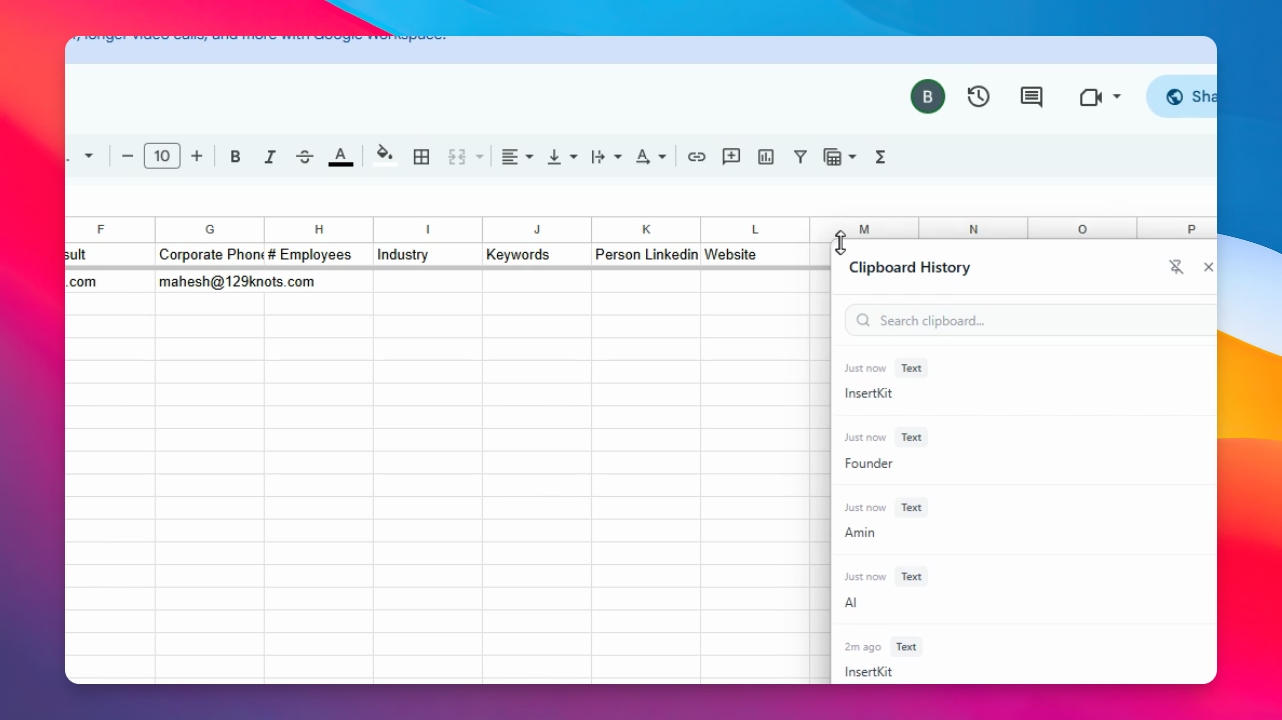
Step 3: Insert Clipboard Items
Click the target cell where you want to insert data. Then, click the desired clipboard item (such as first name, last name, title, or company name) to insert it into the selected cell. Repeat for each field as needed.
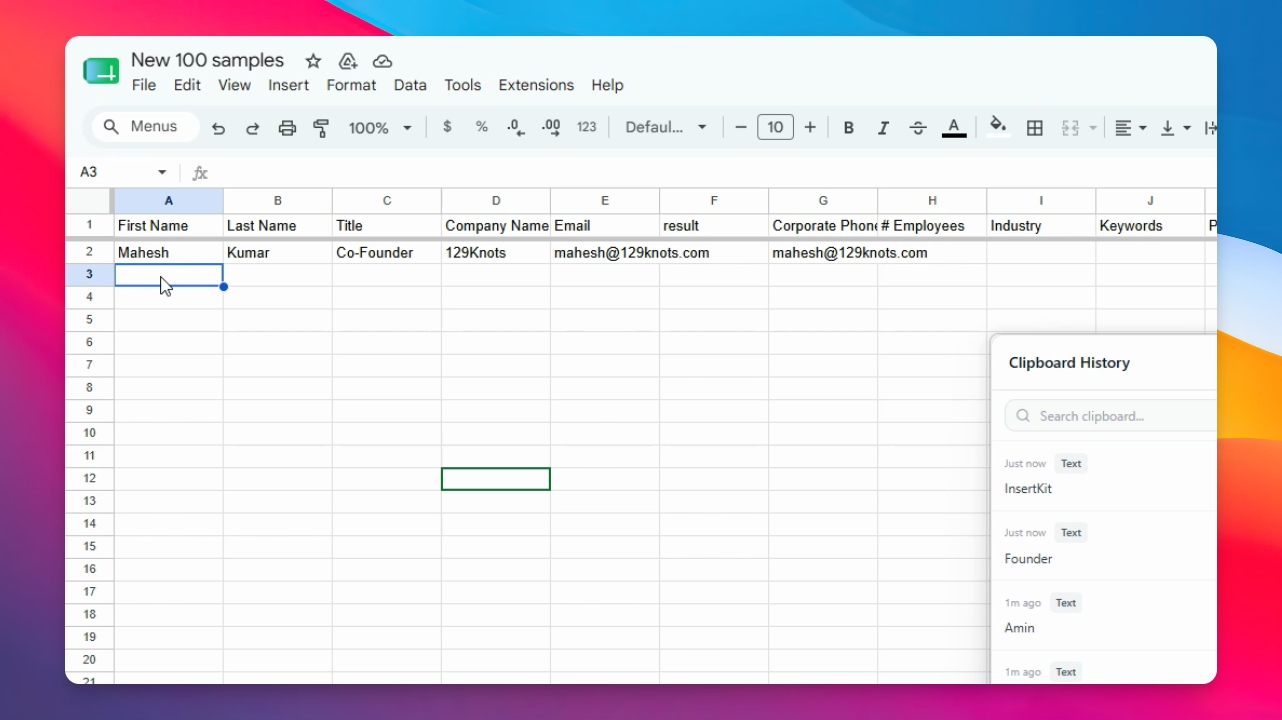
The selected information is automatically inserted, saving you time compared to manual copy and paste.
Step 4: Mark Items as Favorite
To quickly access frequently used clipboard items, pin them or mark them as favorite. Favorite items will always appear at the top of your clipboard list.
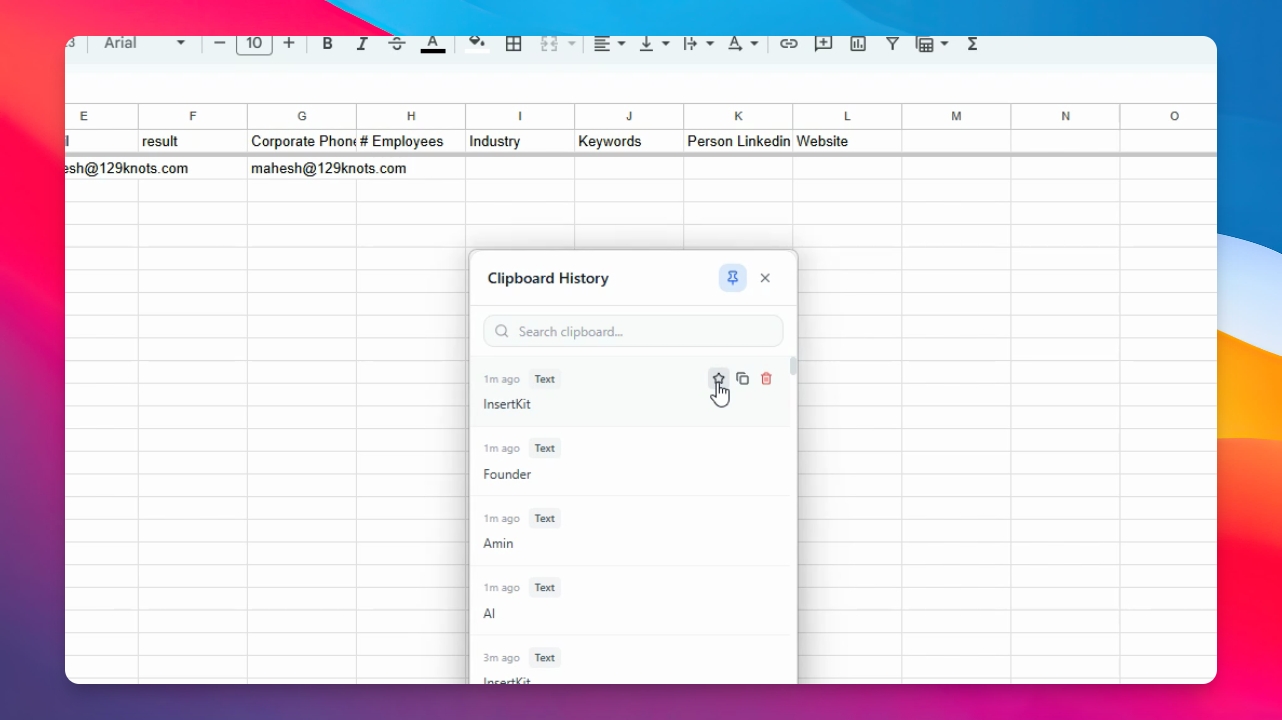
Step 5: Close and Reopen Clipboard
You can close the clipboard popup at any time. To reopen it, press Ctrl + Shift + Z again. Favorite items will remain on top for easy access.
Now you understand how to manage your clipboard with InsertKit for faster and more efficient data entry.